
- JETT File Uploader
- Manual Entry
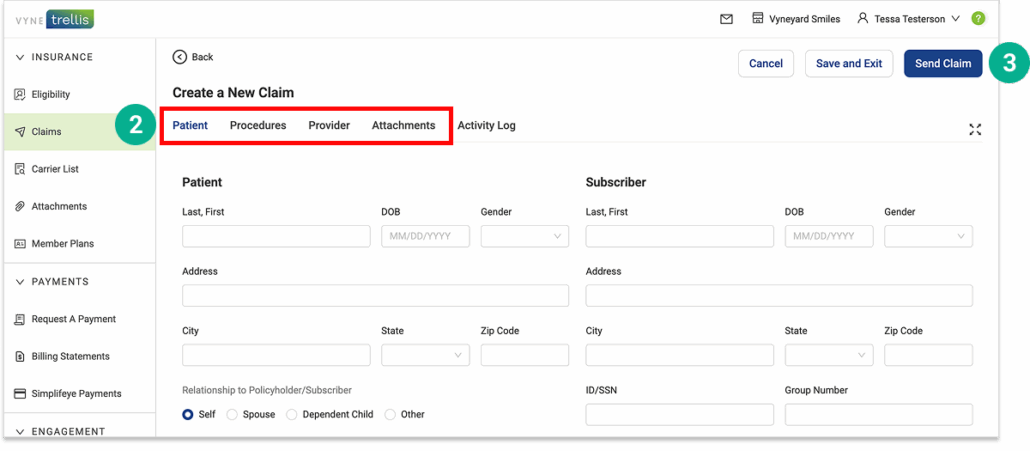
1. In the Office Manager, select one or more of the claims you want to send to Vyne Trellis.
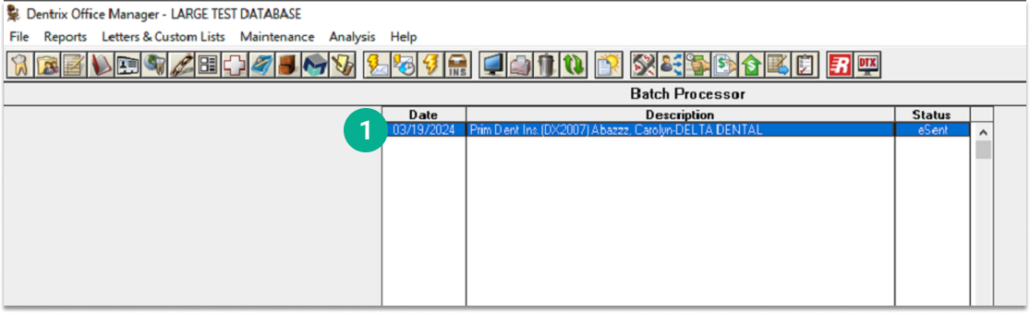
2. Click the Printer icon (or select File > Print) and use the newly named printer.
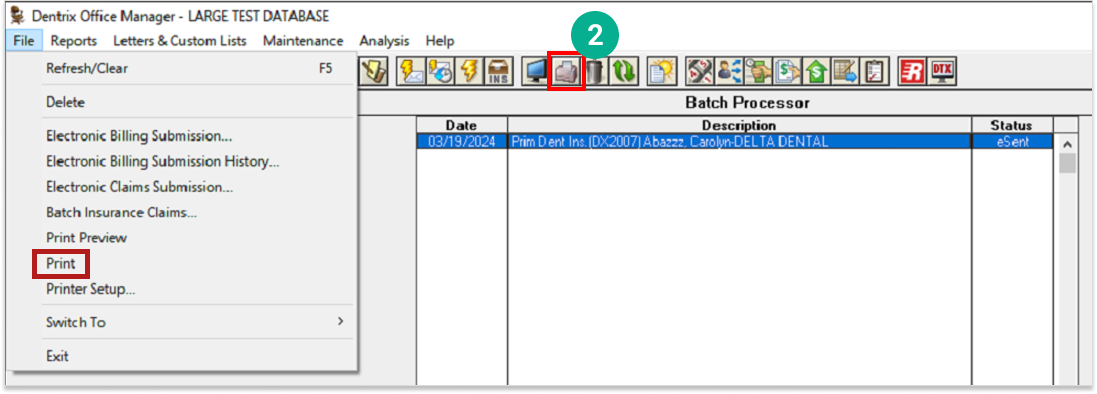
3. The JETT Print Control Dialog will launch. Click Send to: Vyne Trellis.
4. You’ll see a confirmation window that your claims are being uploaded to Vyne Trellis.
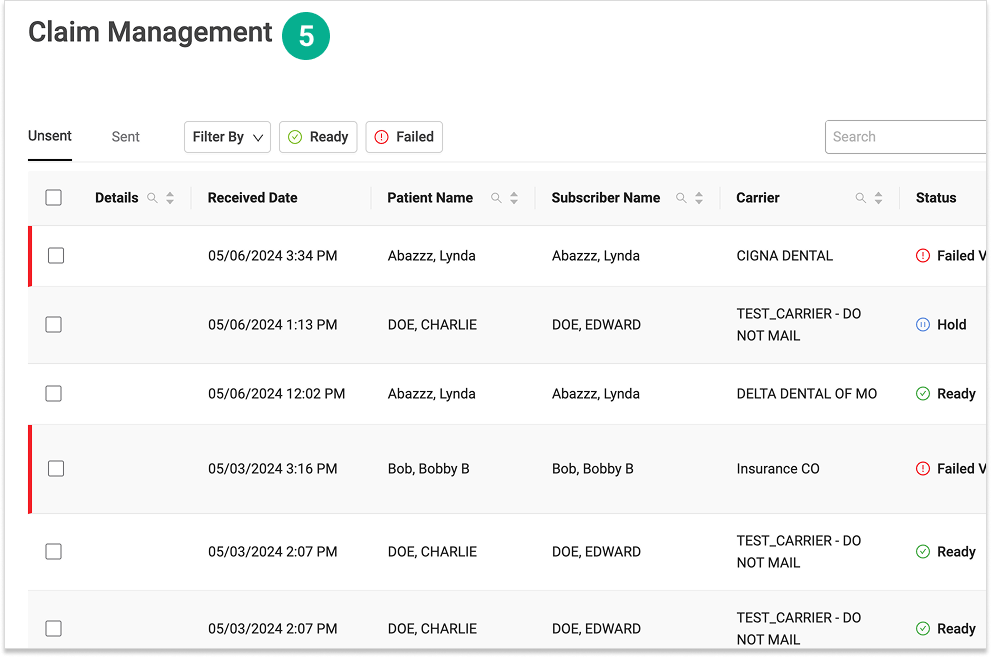
5. Once your claims have been sent via JETT, Vyne Trellis will automatically launch your Claim Management page. Your claims are now available in Vyne Trellis for easy and intuitive claims management. You can find them under the Unsent Claims tab.
Step 3
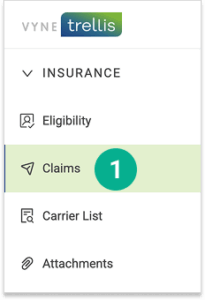
Open Vyne Trellis and Click on "Claims" in the Left Sidebar
Step 4
Turn on Manual Claim Entry in your Settings
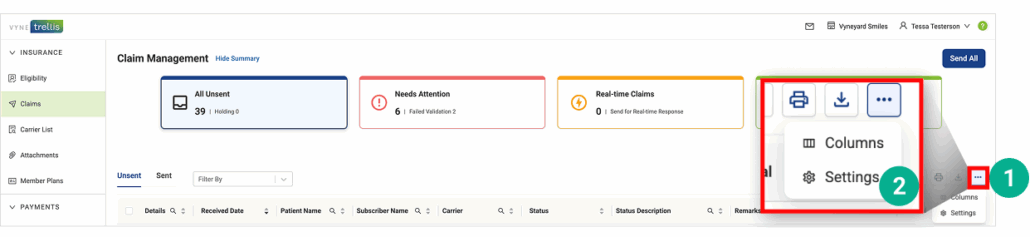
1. On your Claims Management page, select the ellipsis icon (...) on the far right
2. Select Settings
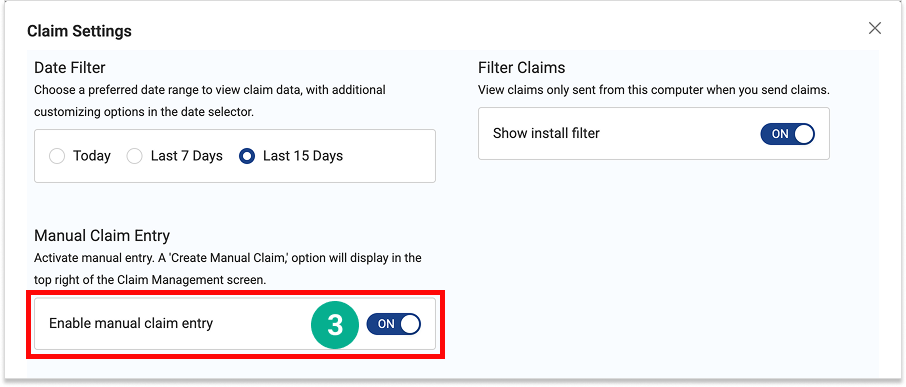
3. Toggle the “Enable Manual Claims” switch to “On”
Step 5
Create and Send a Manual Claim
1. Select the “Create Manual Claim” button
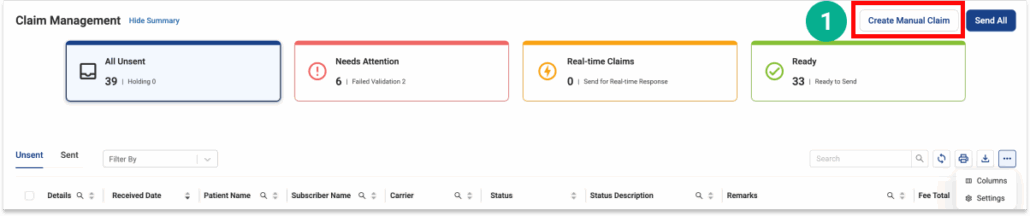
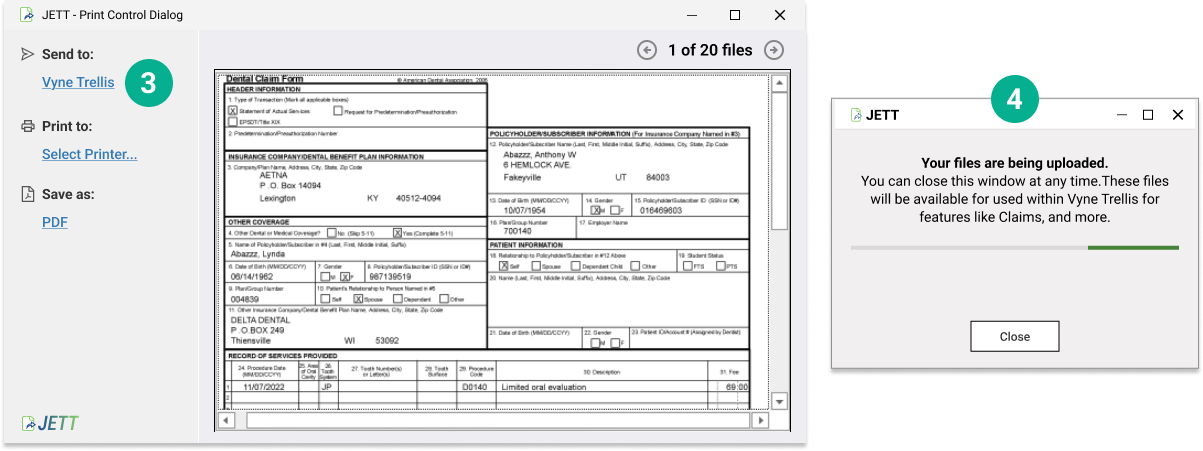
2. Complete all necessary Claim information
3. Click "Save and Exit" to send later or "Send Claim" to send immediately