
Tailor Your Payments Settings
To collect outstanding balances on patient accounts you can quickly and easily send payment requests via text and/or email. Payment requests can either be sent en masse to multiple patients at once or individually to a specific patient.
STEP 1
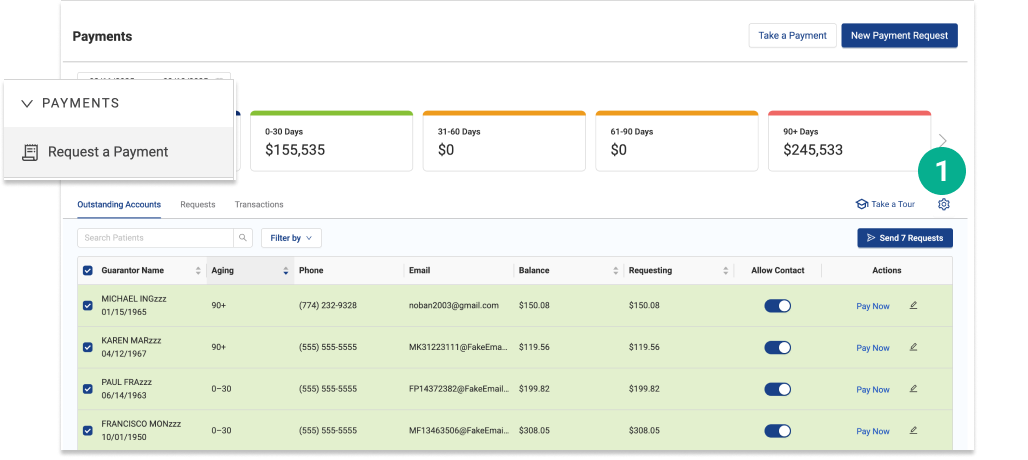
Open Vyne Trellis and click on Payments in the left sidebar
1. Select the settings icon
STEP 2
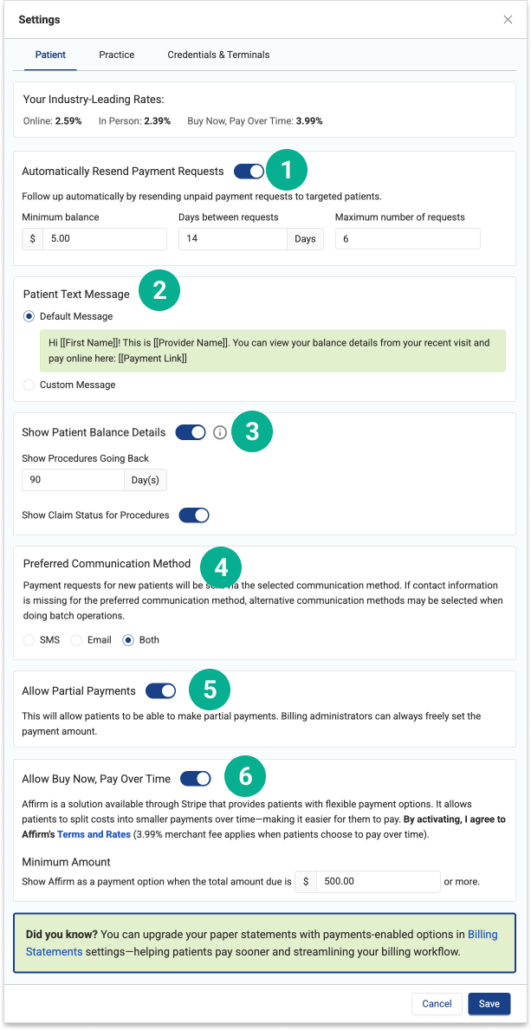
Customize your Patient Settings
Your Patient Notifications settings can be customized to allow you to:
1. Automatically remind patients of Payment requests with Automatic Resend, customized by minimum balance, amount of time between requests, and the maximum number of requests you’d like the patient to receive.
2. View or change the message patients will see when they receive when receiving a payment request, including patient name, amount due, and the provider’s name.
3. Include patient balance details when a payment request is sent to a patient, with the ability to choose how har far back you’d like to display procedures – and if you’d like to show the claim status for procedures to the patient.
4. Set the default communication method of contacting patients
5. For Statements Customers: automatically send text/email payment requests when sending out a paper statement
6. Allow partial payments
7. Include a link in payment requests to allow Buy Now, Pay Over Time. Provide patients with flexible payment options, including ‘Pay in 4’ and ‘Installments’ with Affirm. Patients can split costs into smaller payments over time—making it easier for them to pay while you get paid upfront. Learn More about Buy Now, Over Time.
STEP 3
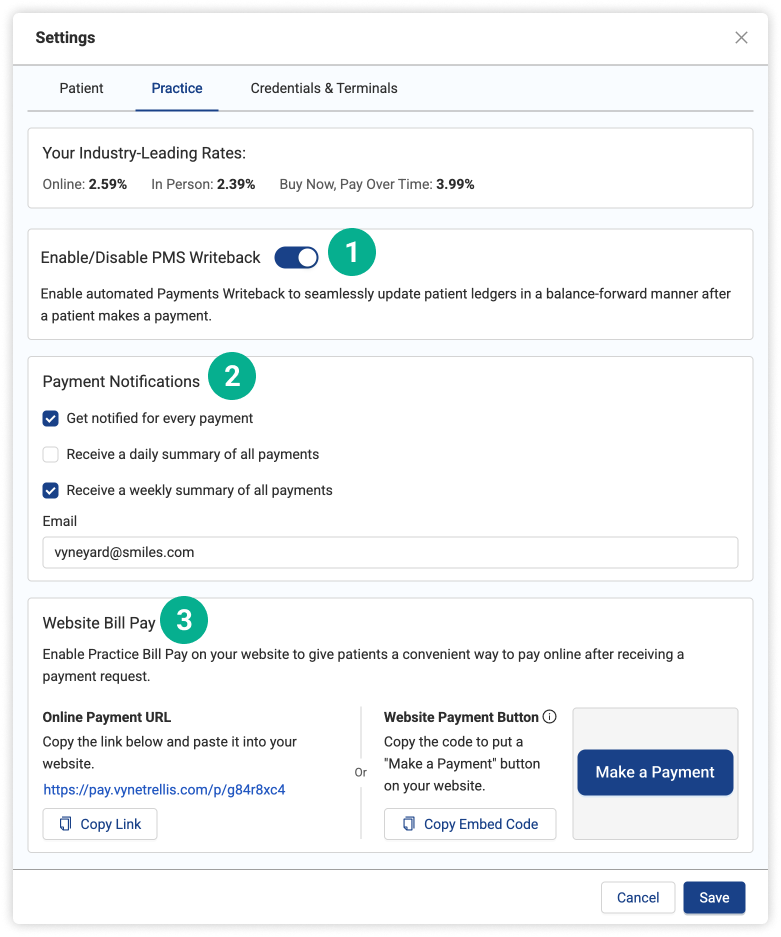
Customize your Practice Settings
Your Practice settings can be customized to allow you to:
1. Allow all Vyne Trellis Payments to automatically write transactions back to your patient ledger in your Patient Management System.
2. Add your email to receive immediate notifications when patient payments are made.
3. Include Website Bill Pay urls or use an embeddable button code on your website
STEP 4
Use Your Office Phone Number for Text Messages
Trellis has the ability to use your office phone number when sending patient communications. Whether these communications are payment requests or insurance correction requests, sending them from your office number adds validity to the request and alleviates patient concerns about phishing attempts.
STEP 5
Upload Your Practice Logo
Trellis will display your practice logo in emails and initial SMS messages when sending payment requests. The presence of your logo adds validity to the request and alleviates patient concerns about phishing attempts–increasing the likelihood of payment.
Upload your practice logo for payment requests.
Want to Add QR Codes to your Billing Statements?
Send printed billing statements to the patients of your choice – all in the same system with just a few clicks.
- Accelerate your patient statement workflow
- Easily view the processing status of your statements
- Know where your statement was mailed even if your patient has moved
Integrate Billing Statements & Payments – 5 mins
Increase Collections and Prevent Bad Debt with Batch Payment Requests
Outstanding balances quickly turn into bad debt as time passes. Batch payment requests dramatically improve your likelihood of getting paid.
- According to the ADA, new patient retention is only 41% on average for dental practices, while existing patient retention is around 85%.
- This means that nearly 6 out of 10 new patients won’t return after their initial visits, making in-office collections unlikely.
By sending online payment requests in batch, Vyne Trellis® Payments dramatically improves the likelihood of being paid.
Batch Payments – 9 mins
Learn how to send Batch Payment Requests
