Follow these instructions to take payments from directly within Vyne Trellis.
STEP 1
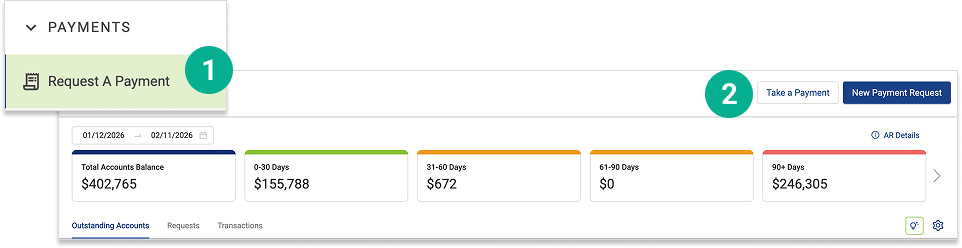
Open Vyne Trellis and click on Payments in the left sidebar
1. Open Vyne Trellis and click on Payments in the left sidebar 2. Click the “Take a Payment” button in the top right corner of the screen
STEP 2
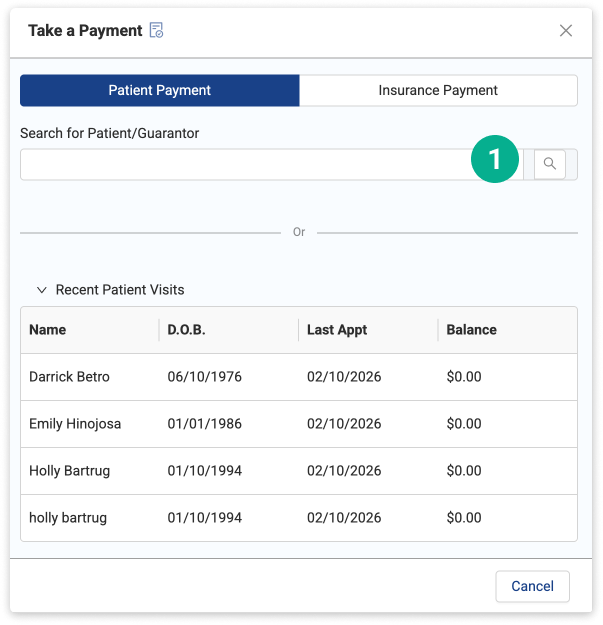
Select patient and enter transaction information
1. Select a patient from the recent visits list or search for a specific patient
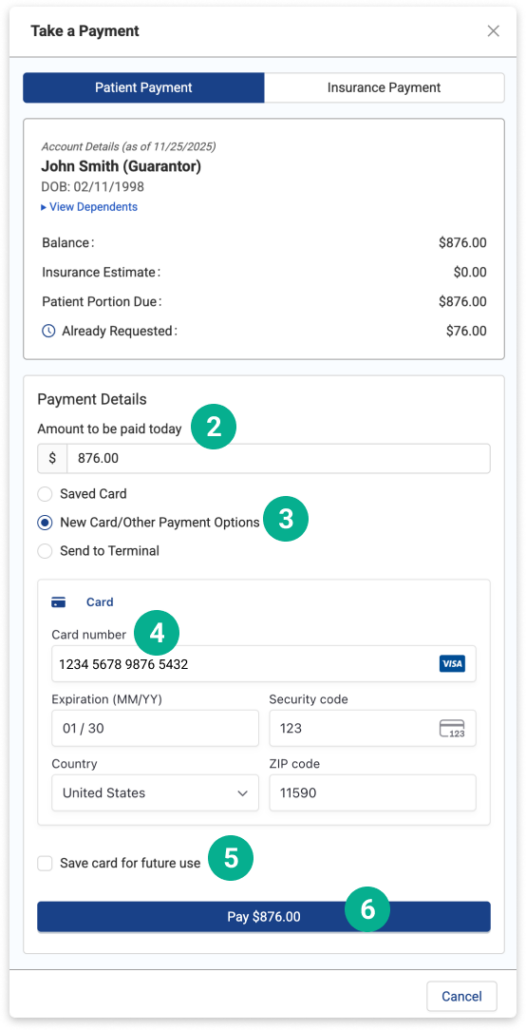
2. Enter the amount for the transaction 3. Select “New Card/Other Payment Options” 4. Enter the credit card information 5. You have the option to save the credit card information on file 6. Click on the Pay button
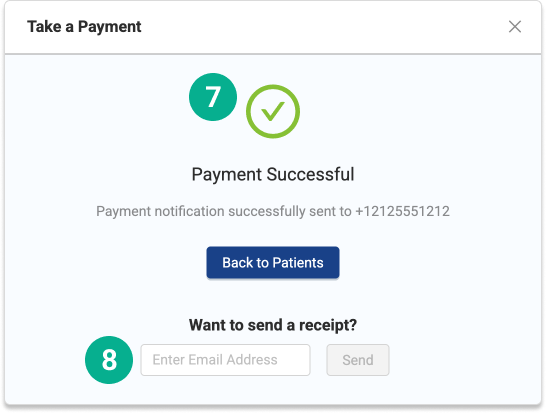
7. Once your transaction has processed, you’ll receive a confirmation screen. If the patient has an email or phone number on file, a payment confirmation will automatically be sent to them 8. If the patient does not have an email on file, you can enter an email address to send a payment confirmation