Failure to submit your Legal Business Information will result in limited functionality of Vyne Trellis® features. Important: This step must be completed before training or onboarding can begin. This information is typically found on an EIN (CP575) or 147c Tax Form.
What happens if I don't update my Legal Business Information?
If you fail to include the required information, text messages will be marked as spam and blocked from reaching patients.
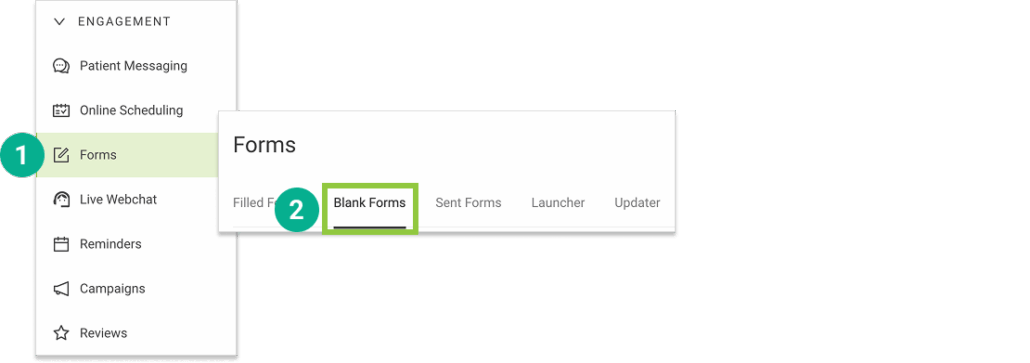
1. Open Trellis and expand the Engagement Section. Click on Forms in the sidebar. 2. Select the “Blank Forms” tab
STEP 3
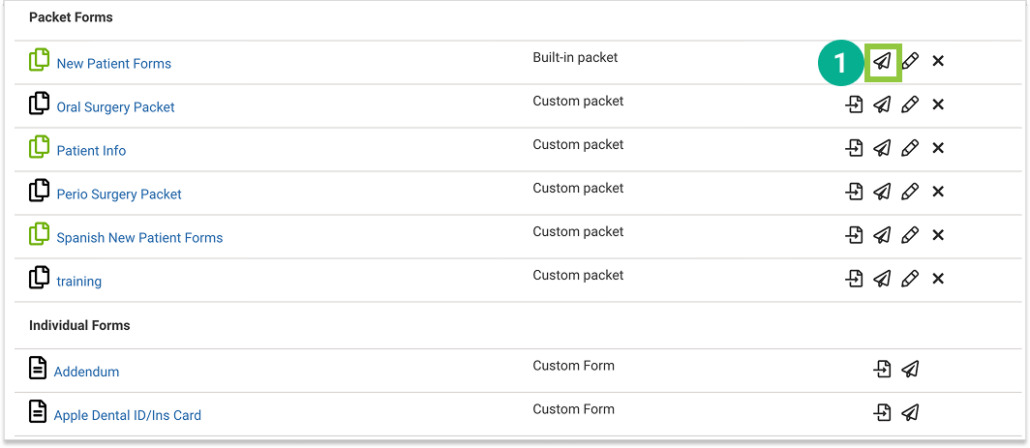
Select the form(s) you'd like to send
1. Identify the form packet or individual form you’d like to send and select the Send icon (paper airplane).
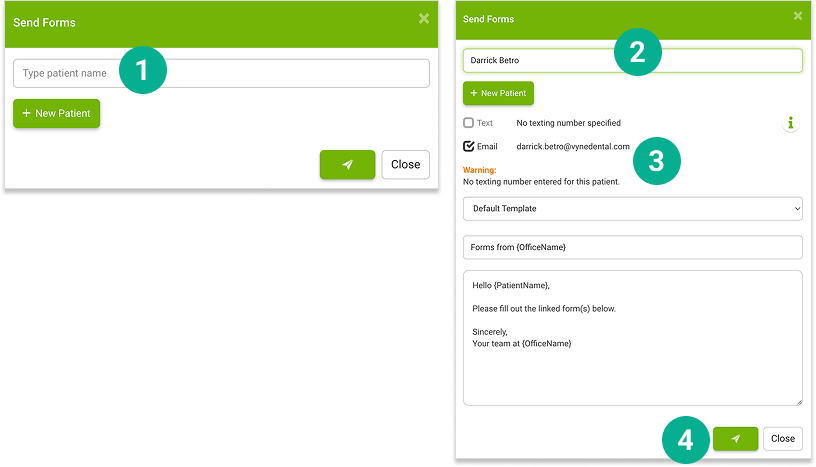
If the patient you’d like to send a form to already exists in Trellis:
1. Enter their name in the “Type patient name” field, select the patient, and complete the form to send. 2. Complete all the patient information 3. Select the format (Text or Email) and template for your communication 4. Click the Send icon
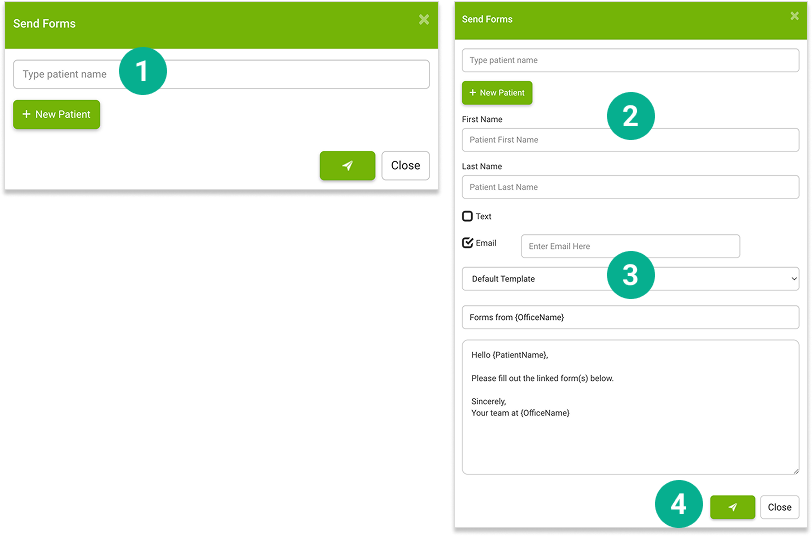
If this is a NEW patient or they do not yet exist in Trellis:
1. Select the “+ New Patient” button 2. Complete all the patient information 3. Select the format (Text or Email) and template for your communication 4. Click the Send icon
STEP 4
Customize Your Forms Experience
Easily add forms to your practice website, create new forms, and set up an in-office tablet experience. Integrate your Topaz and ePad signature pads for a streamlined form signature experience.
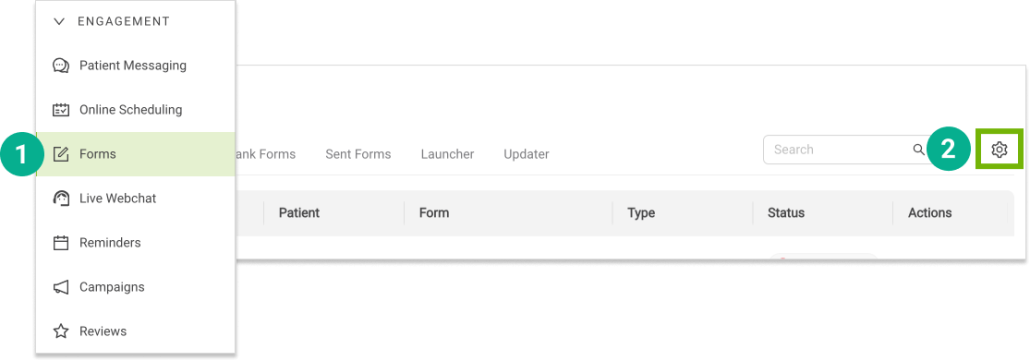
Forms Settings 1. Open Trellis and expand the Engagement Section. Click on Forms in the sidebar. 2. Select the Settings “gear” icon in the upper right.
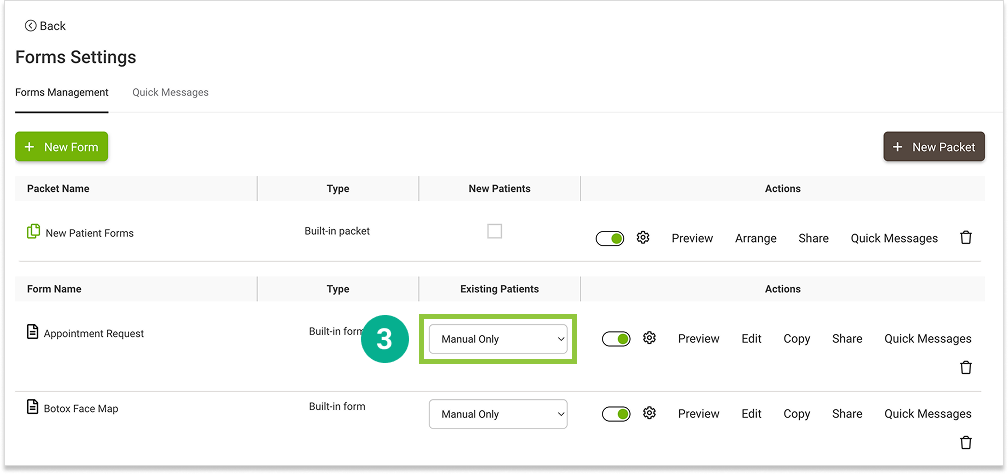
3. Click the drop down menu in the Existing Patients column. Individual forms are available for Existing Patients and included in the following message types.
Save-the-date
Appointment Reminders
Appointment Confirmations
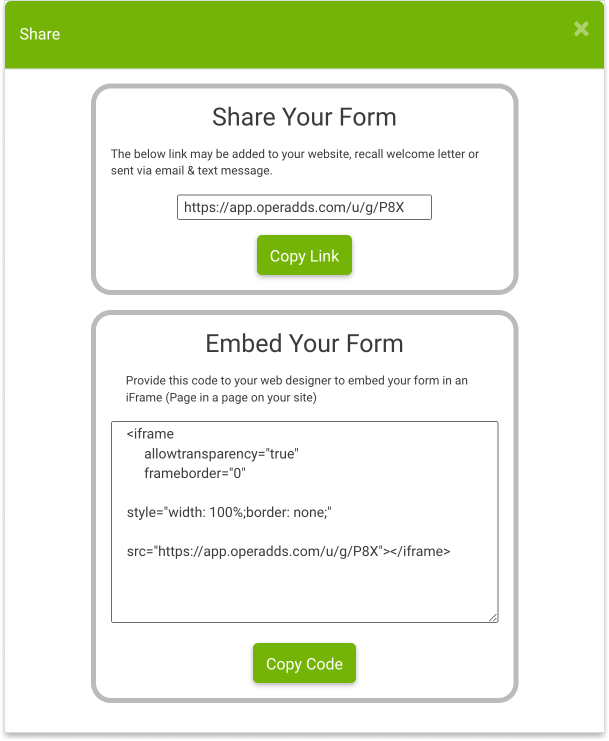
4. Add Forms to your website by sharing the link with your web designer, available by way of the Share option
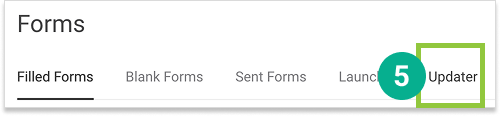
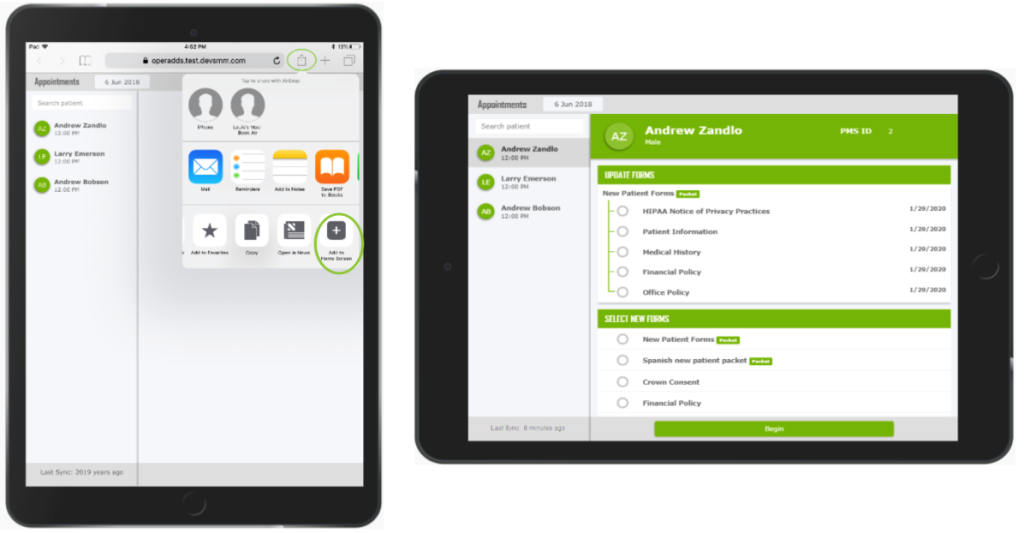
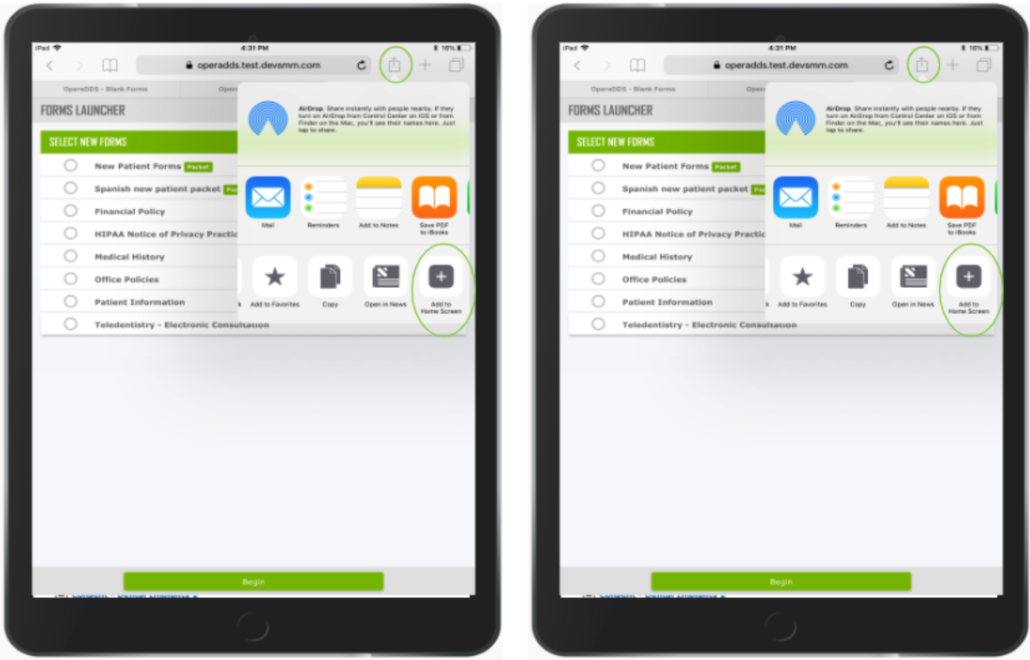
5. Add Forms to your your tablet
Login to Vyne Trellis on your tablet via Google Chrome
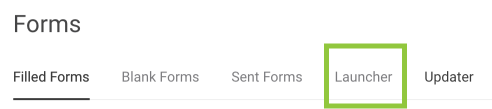
Click on the Forms feature
For reception, select the Updater
Use the upward arrow option to Add to Home Screen
For clinical, select the Launcher
Use the upward arrow option to Add to Home Screen
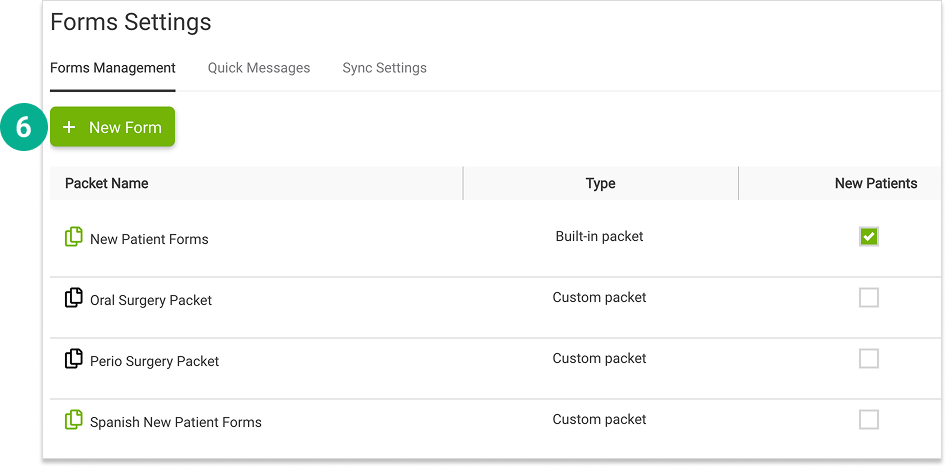
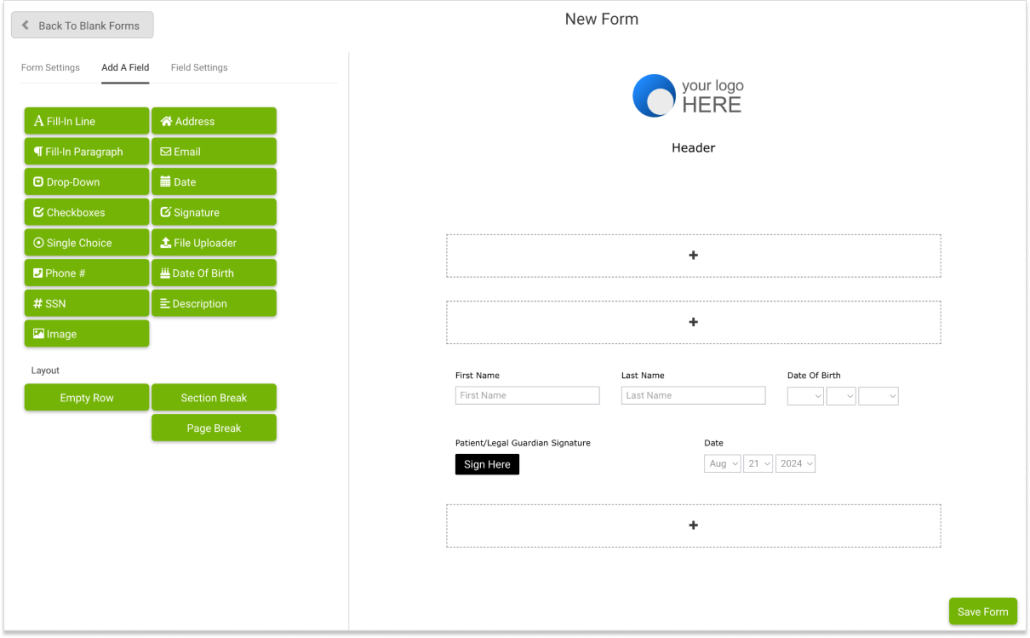
6. Create New Forms
Click on the Forms feature
b. Click on the Settings wheel in the sidebar | Feature Settings | Forms Settings
c. Select New Form
Use the Drag-and-Drop Custom Form Builder to create your very own custom Forms.
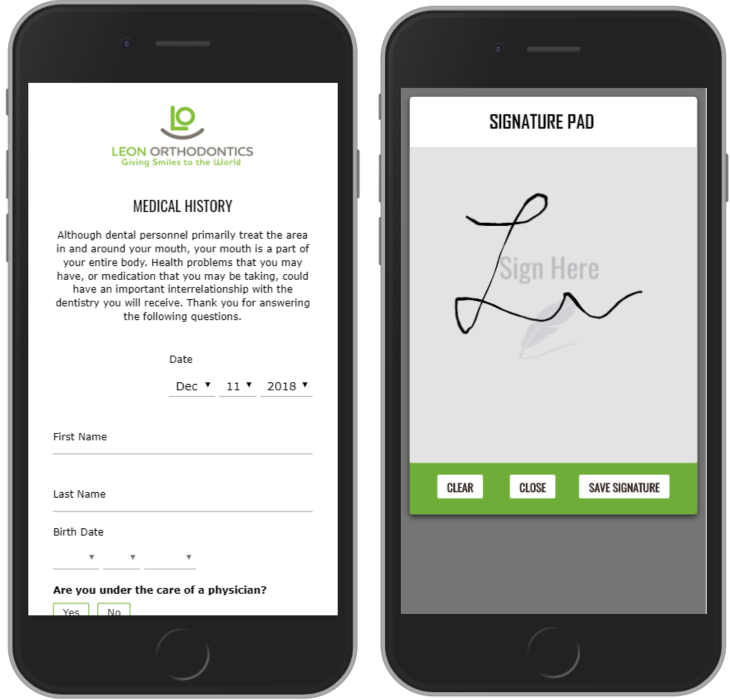
8. Signing Forms can be done via patient personal device, tablet, or computer.
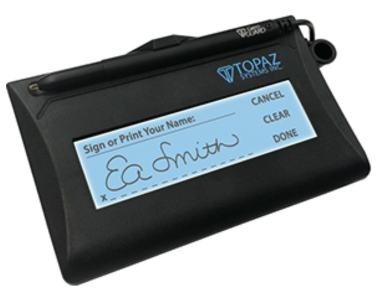
Topaz Signature device 1. Use the Topaz Signature pad instructions found here 2. Next, refer to the instructions here
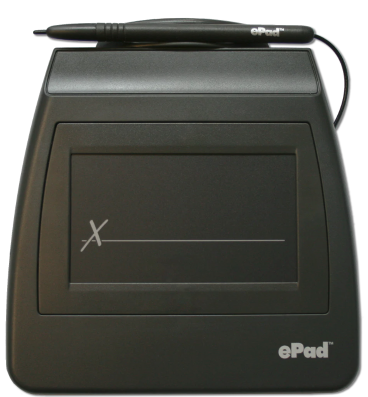
ePad Signature 1. Use the ePad Signature instructions found here 2. Next, refer to the instructions here