Install Vyne Sync – Vyne Sync allows patient data to automatically flow into Vyne Trellis from your PMS, eliminating manual entry.
Submit your Legal Business Information – Your Legal Business Information is required to successfully send payment requests, insurance updates, and other communications via SMS/text to your patients. Note: if you are an existing Vyne Trellis customer and have already completed your Legal Business Information successfully, you should see a message “Approved: Your registration is approved and complete! You can now use text messaging without restrictions.”
STEP 2
Create Your Merchant Account
To start processing payments, set up a merchant account with our partner, Stripe, through our streamlined onboarding process. Your progress is automatically saved, allowing you to complete the form at your convenience.
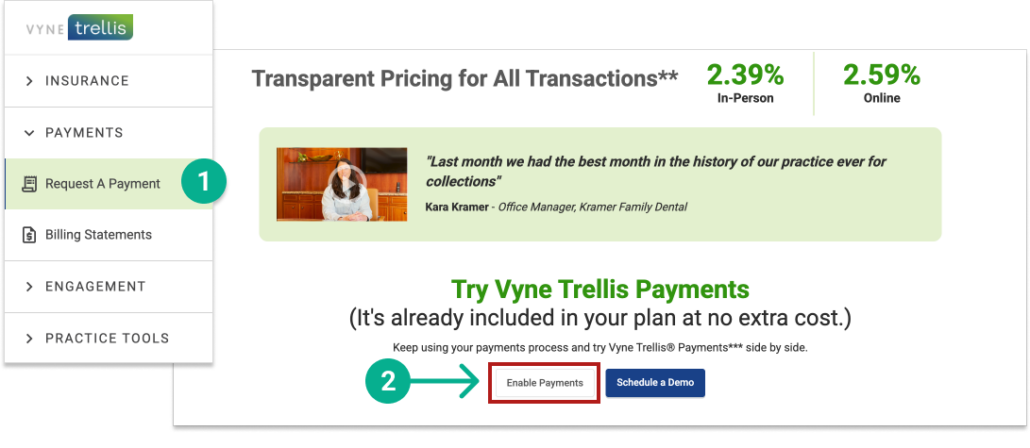
1. Log into https://app.vynetrellis.com/ and click on “Request a Payment” in the left sidebar 2. Scroll down to the bottom of the page and click the “Enable Payments” button. Follow the step-by-step instructions to complete your Stripe Enrollment.
Take patient payments over the phone or online via Vyne Trellis
The Virtual Terminal allows your team to securely key in payment details to accept phone, mail, or online payments so you can collect revenue without the patient being in the office.
Make Payments work for you by customizing your settings. Set automated reminders, automated digital requests with mailed statement, notification preferences, and more!
To collect outstanding balances, swiftly send payment requests via text or email. Easily send requests to multiple patients at once or individually to specific patients.