Before you get started sending claims, make sure you have installed the JETT File Uploader Plugin on your workstation(s) where you submit claims.
Start Sending Your Claims
Submit Claims to Open Dental – 2 mins
Once a claim has been created in Open Dental, you can access it by opening the Manage Claims window.
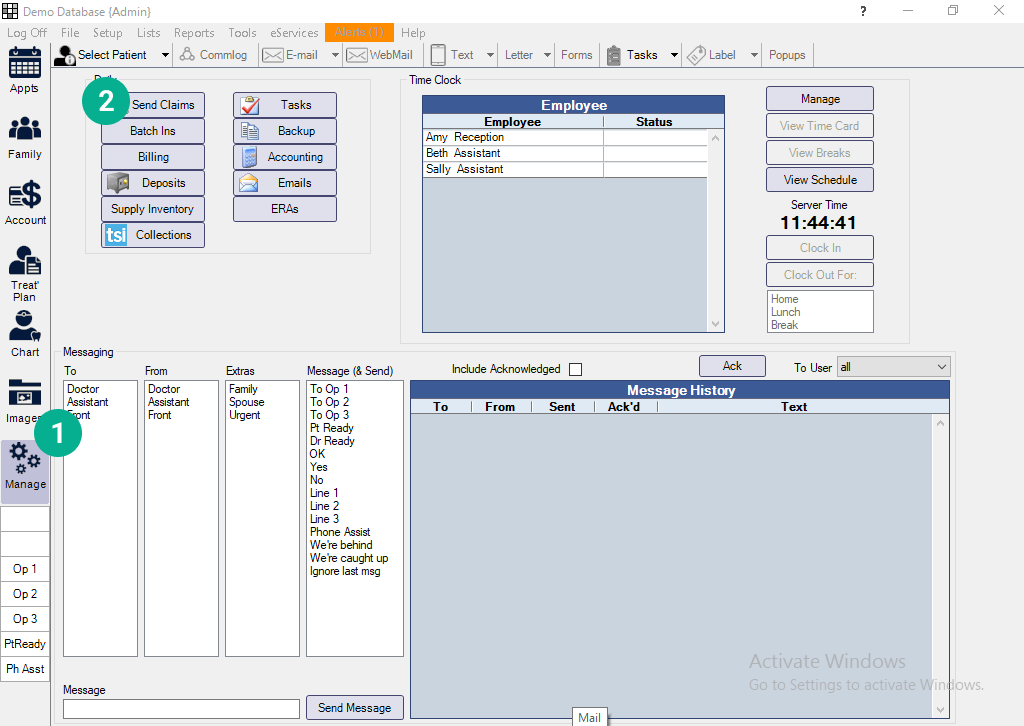
1. Click Manage on the left panel of Open Dental.
2. In the Manage claims window, click Send Claims.
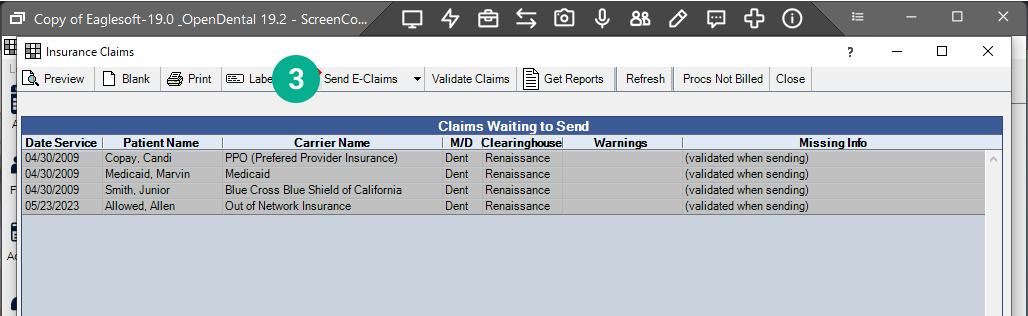
3. The Send Claims window will display unsubmitted claims. Highlight the claims you want to send and click Send E-Claims.
4. All of the selected claims will be available in Vyne Trellis as Unsent Claims.
Don’t forget to click Send All in the upper right corner within Vyne Trellis, this is the final step to getting your claims sent to insurance!
How Do I Track My Claims After I Send Them to Insurance?
You can track your claim status in Vyne Trellis.
After clicking Send or Send All to process your claims in Vyne Trellis, they will show up in the Sent tab of Vyne Trellis. Here you can track claims to see if they were accepted or rejected by insurance.