Submitting your Statements from Open Dental – 5 mins
Get Set Up for Statements
STEP 1
Install or Update JETT File Uploader Plugin
If your version is below Version 25.11, update your plugin by visiting your Downloads page. The JETT Plugin is required on all computers where users initiate sending transactions, not on your practice server.
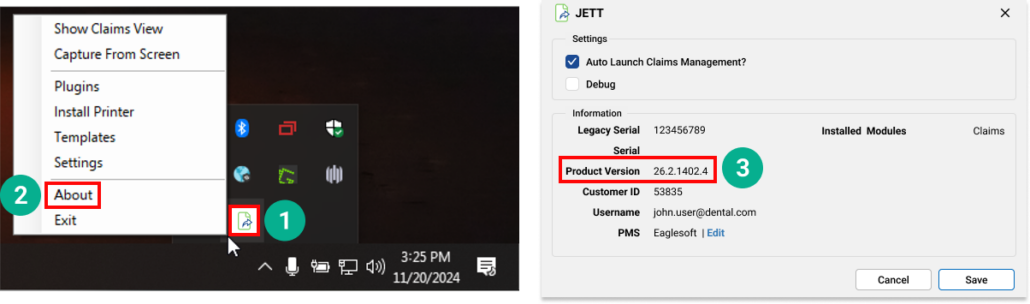
To Find your JETT Plugin Version
1. Right click on the JETT Plugin icon on your desktop or taskbar 2. Select “About” 3. Locate your JETT Plugin version in the “Product Version” section
By connecting the JETT Plugin, patient data will automatically flow into Vyne Trellis, eliminating manual entry.
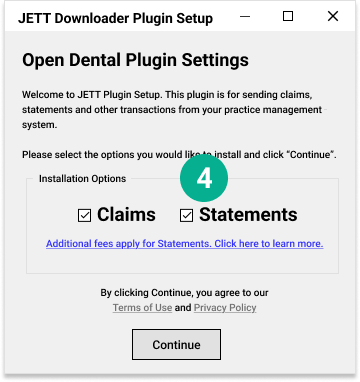
4. Choose Statements in Installation Options when prompted to opt in for Billing Statements.
3. Under Electronic Billing, select Output to file. 4. Ensure that the Output Path is listed as: c:\users\public\res\statements. 5. Click “OK”.
STEP 3
Manage your Billing Statements settings
Changes made to Statement Settings must be made before submitting statements. After saving, all updates will apply to future submitted statements.
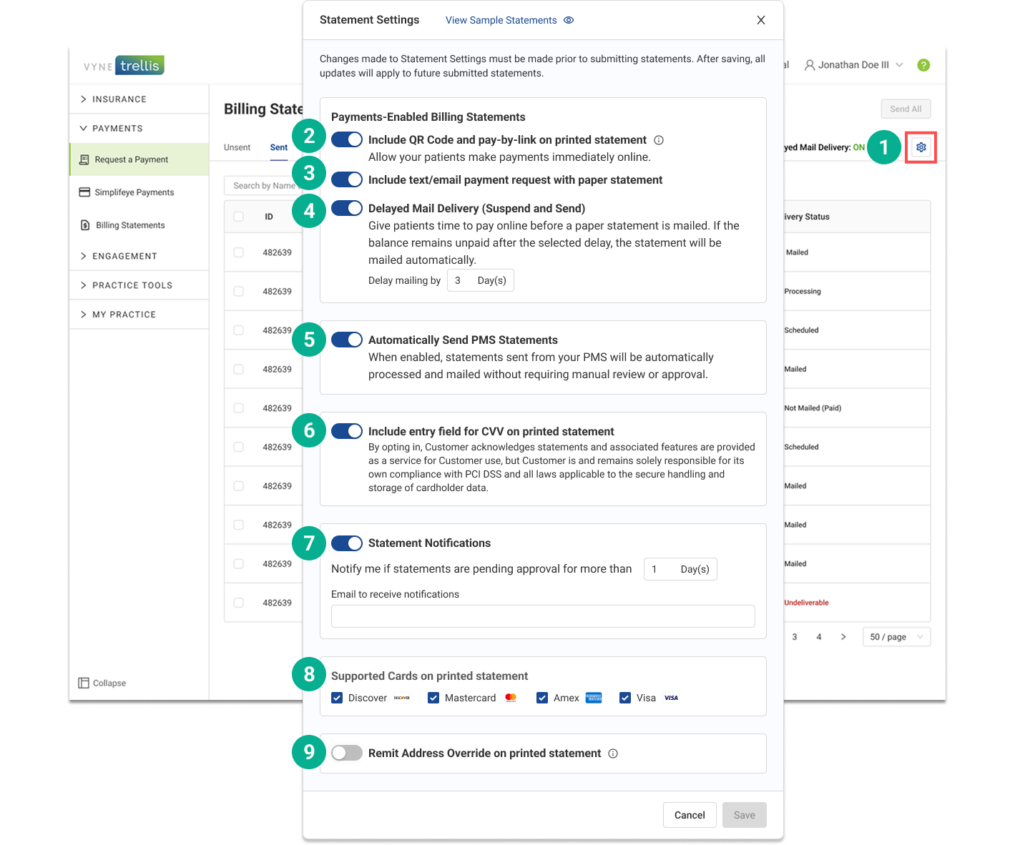
1. Click on the Settings icon on the Billing Statements Page.
Available settings:
2. Include a QR code and online payment link on printed statements allowing users the option immediately pay online (requires Vyne Trellis Payments) 3. Send a text/email payment request in addition to your paper statement 4. Ask patients to pay electronically before mailing a statement. Choose a delay of 1–7 days (default is 3 days). If the full balance isn’t paid within that timeframe the statement will automatically be mailed. 5. Automatically Send PMS Statements – statements sent from your PMS will be automatically processed and mailed without requiring manual review or approval. 6. Include the CVV field option on printed statements 7. Receive an email notification if unsent statements are pending approval for more than a time period that you set. 8. Select/De-select Card Types accepted by your office 9. Override the address that is printed and mailed on your billing statements
Click Save to apply changes to future submitted patient billing statements.
Sending Billing Statements from Open Dental
STEP 1
Generate your statement list in Open Dental:
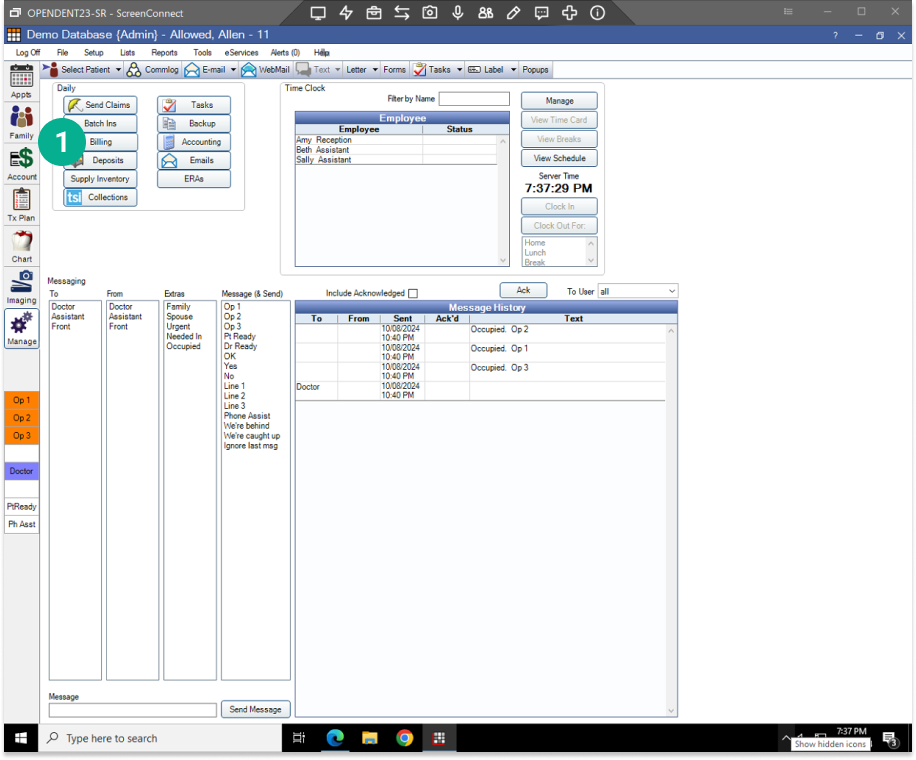
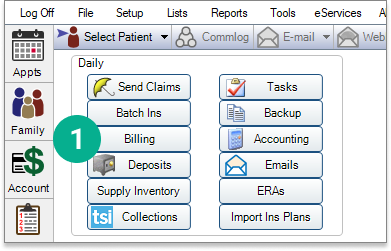
1. In the Manage module, click on Billing.
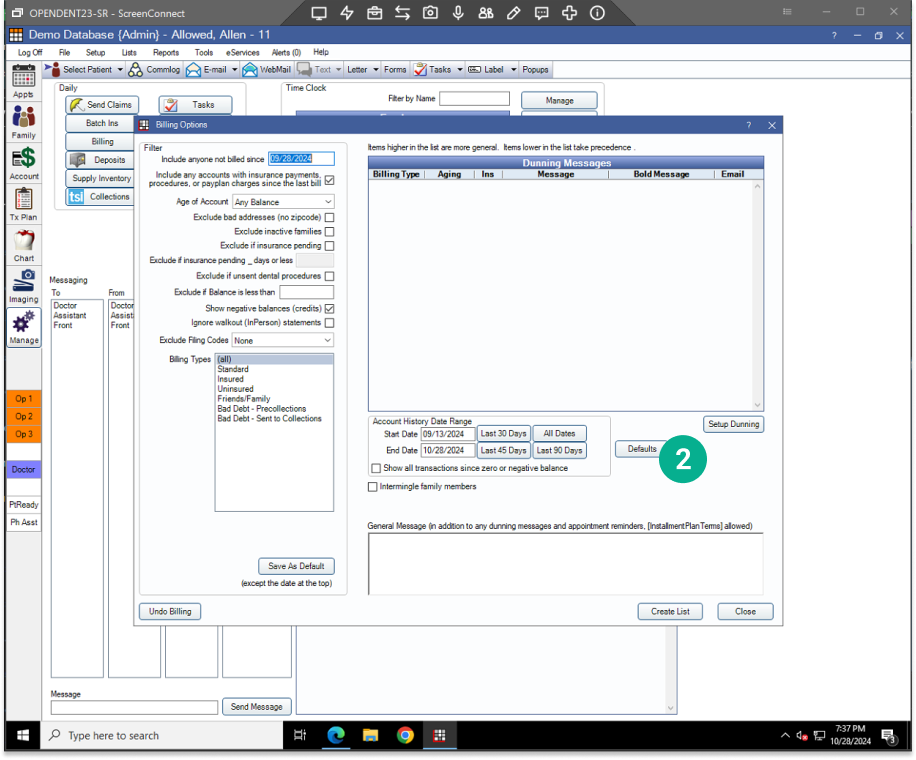
2. Apply any filters or criteria for statements you’d like to create. 3. When finished, click “Create List”.
4. Your statement list will appear. 5. Click the Send button. You’ll see a dialog box transmitting your selected statement files to Vyne Trellis. NOTE: Make sure the Mode for all statements is Electronic. To update this, select the Edit Selected button (6) and change the mode to “Electronic”
STEP 2
Open Vyne Trellis and click on Billing Statements in the left sidebar
Click on Billing Statements to view all current Statement and Files.
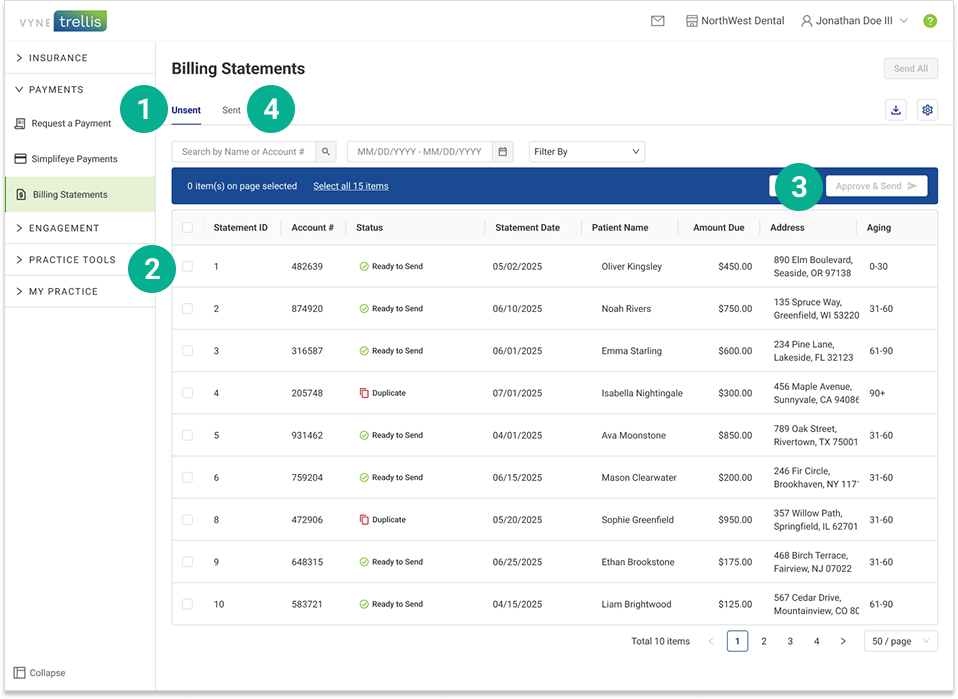
1. By default, your statements will appear in the “Unsent” tab. NOTE: If you have enabled the “Automatically Send PMS Statements” setting, statements sent from your PMS will be automatically processed and mailed without requiring manual review or approval. 2. If you have Unsent Billing Statements in your queue, select the statements you want to send 3. Click the “Approve & Send” button to send your selected Statements 4. All sent Billing Statements will appear in the Sent tab
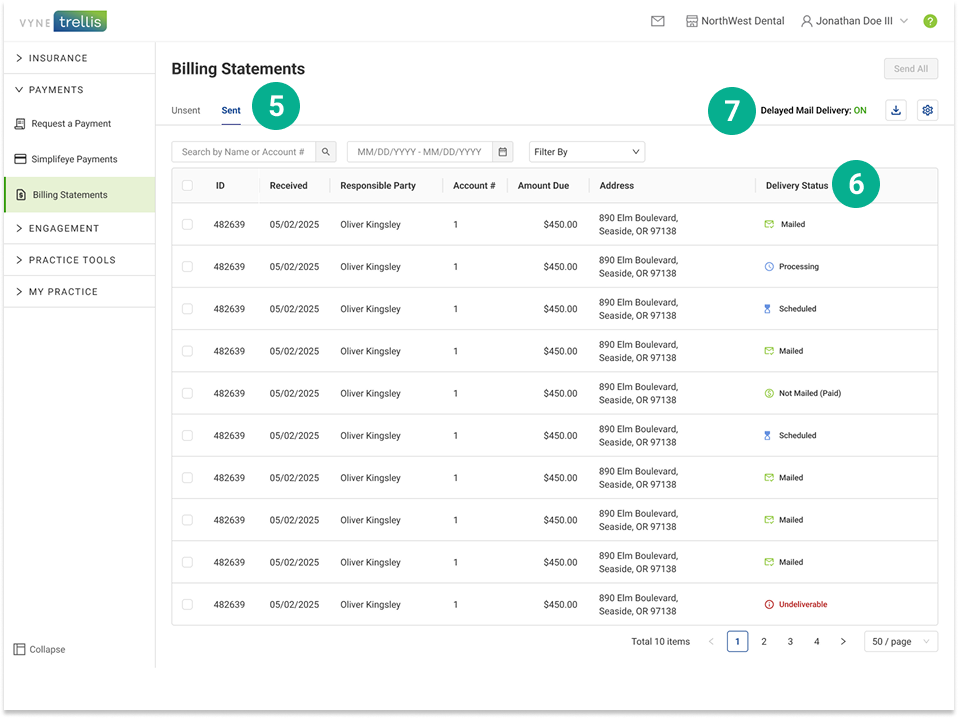
5. Your Sent tab gives you a detailed status of all sent billing statements 6. The Delivery Status column lets you know at what stage of the process your billing statements are in. If you have enabled Delayed Mail Delivery, you’ll also see what statements have been paid electronically (saving the cost of mailing). 7. Delayed Mail Delivery ON/OFF indicates whether Delayed Mail Delivery is enabled. When turned on, patients have the number of days you select (1-7 days; default 3 days) to pay electronically before a statement is mailed.
Provide Patients With an Easier Way to Pay From Their Billing Statement
Bring together billing statements with payment options such as QR codes and pay-by-links to pay online.
Integrate Billing Statements & Payments – 4 mins
Accelerate Your Payments Now! Start accepting online payments from your Billing Statements to see faster payment resolution. Enhance convenience for your patients and efficiency for your practice by providing easy, real-time payment options.
Get Started is easy:
Enroll for Vyne Trellis Payments
Enable online payments in your Billing Statement settings