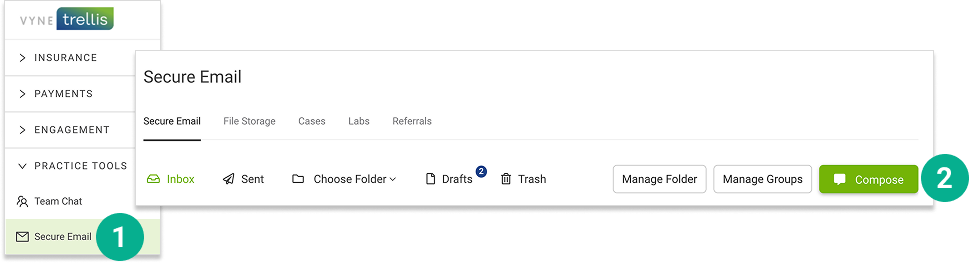
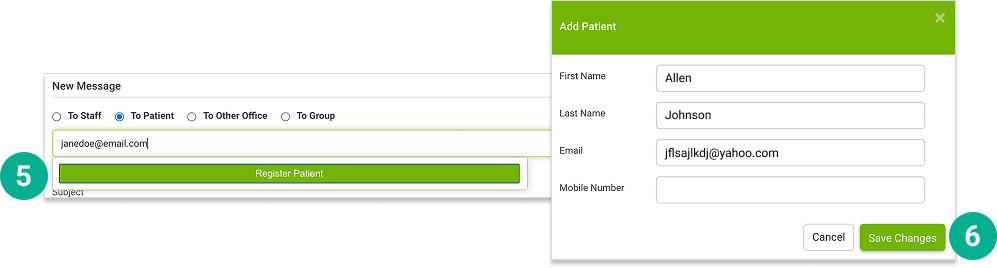
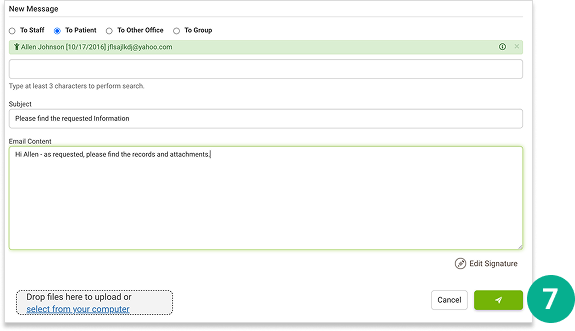
Getting Started with Secure Email STEP 1 Send a Secure Email 1. Open Vyne Trellis and expand the “Practice Tools” section. Select Secure Email.2. Select the “Compose” button 3. Select the recipient type (Staff, Patient, Other Office, Group) 4. Start typing the recipient’s emailIf the recipient is an existing contact, select them from the results 5. If the recipient cannot be found by email select the Register Patient button6. Complete the Add Patient Form and click Save Changes 7. Complete the subject line, email message, and any attachments and click the Send button to send your Secure Email Return to "Get Started"