Vyne® ClearCoverage: Smarter Eligibility & Benefits at a Glance
The New Way to Get Better Eligibility & Benefits Information
The Problem Dental front-office teams are overwhelmed by the time-consuming, manual tasks that hinder efficient patient scheduling and treatment planning. These challenges include:
Incomplete or hard-to-interpret eligibility and benefits (E&B) data.
Frequent payer phone calls just to confirm procedure-level coverage.
Difficulty presenting treatment plans, impacting case acceptance.
Manual workflows that lead to delays, missed revenue, and frustration for staff and patients alike.
As patient expectations grow and insurance complexity increases, practices need more than E&B responses—they need fast, accurate, and actionable insights.
The Solution ClearCoverage is Vyne’s solution to this growing demand for richer eligibility data and simplified workflows. Designed specifically for dental front-office teams, ClearCoverage View is a modernized E&B interface embedded within Vyne Trellis. Powered by Vyne’s new ClearCoverage process, it replaces the limited, hard-to-parse formats with a more intuitive experience. Practices now get:
Procedure-level benefit detail — see coverage and history down to the procedure code.
Real-time responses from a growing network of supported payers.
A collapsible, structured interface that highlights key information while keeping clutter at bay.
Built-in visual cues and summaries that eliminate the need to parse raw payer data.
ClearCoverage View – 5 mins
STEP 1
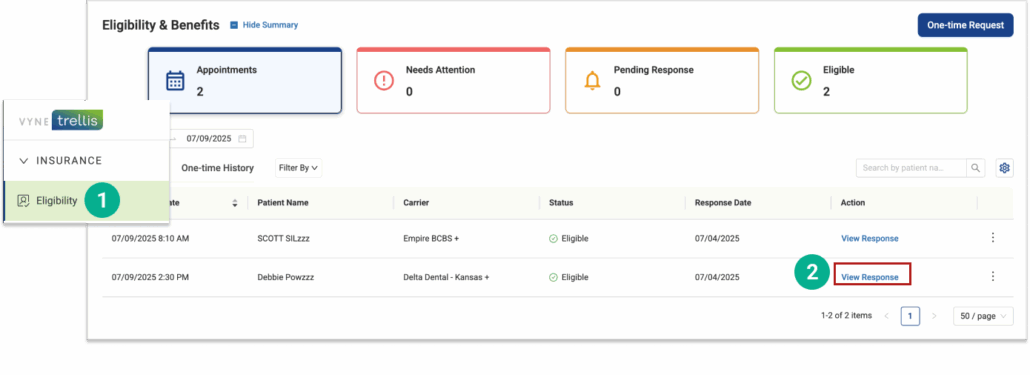
Open Vyne Trellis and click on Eligibility in the left sidebar
1. Select Eligibility
2. Select “View Response” from the Actions column
3. Select the “ClearCoverage View” tab
STEP 2
Understanding your ClearCoverage Response
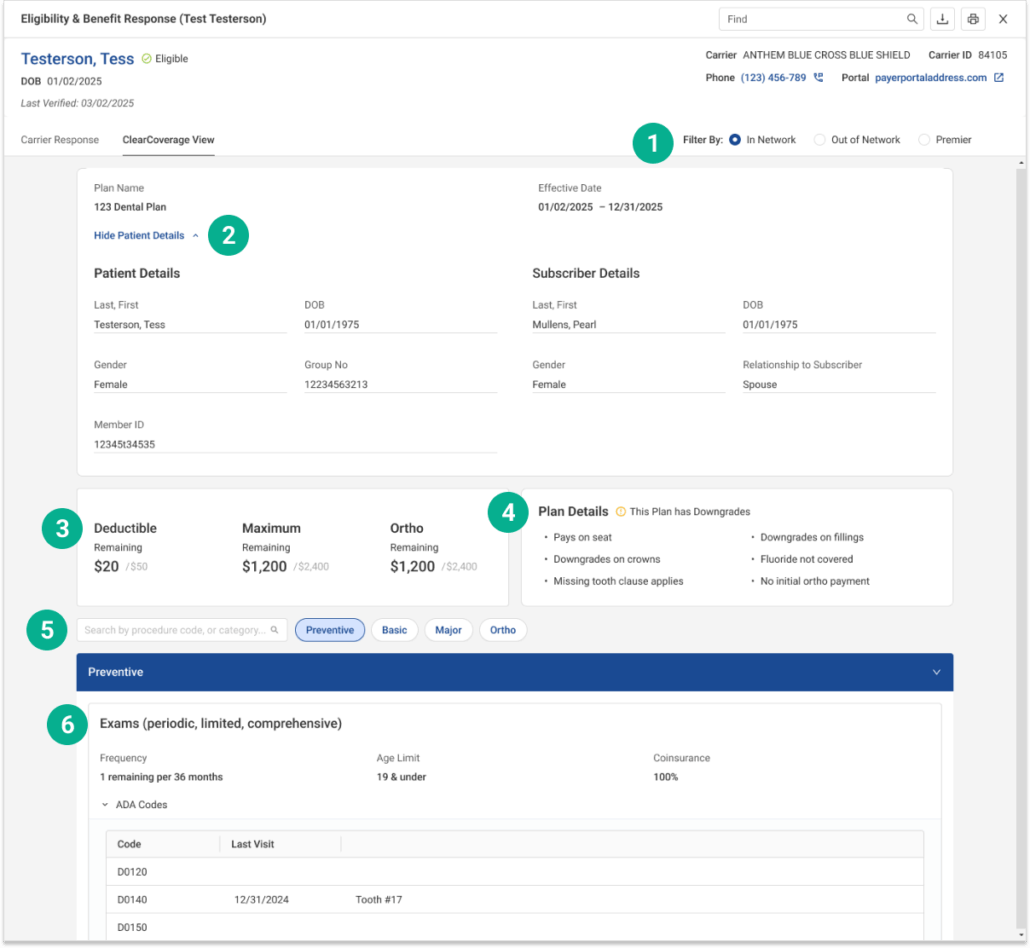
1. Filter the displayed benefits based on the providers network type to quickly view coverage details specific to the network your operating within. 2. View key demographic and plan information about the patient and subscriber. Click Hide Patient Details to collapse this section and reduce visual clutter. 3. Displays a quick overview of the patients plan financials:
Deductible Remaining: How much of the deductible is still owed
Maximum Remaining: The amount left under the yearly benefit maximum
Ortho Remaining: Remaining orthodontic coverage
4. Highlights specific rules or exceptions for the plan such as, Downgrades on specific procedures, Coverage exclusions, and special clauses. 5. Search by procedure code or category and use category filters like, preventative, basic, major and ortho to help surface relevant benefit details for specific treatments quickly. 6. Each benefit category section displays key coverage information in a clear and structured format. This includes:
Frequency limits (e.g., how often the service is covered)
Age restrictions (if applicable to coverage eligibility)
Coinsurance details (the percentage covered by insurance) Users can expand the section to view a list of associated procedure codes (ADA codes), along with historical data such as last visit dates and treatment details when available.