Attach perio charts without resorting to screenshots and manual uploads. These seamless chart attachment workflows save you time and improve your claim submission experience:
One-click perio chart attachments pulled directly from your PMS
Historical chart selection for compliance and payer requests
In-app chart viewer with clear metadata and visual confirmation
STEP 1
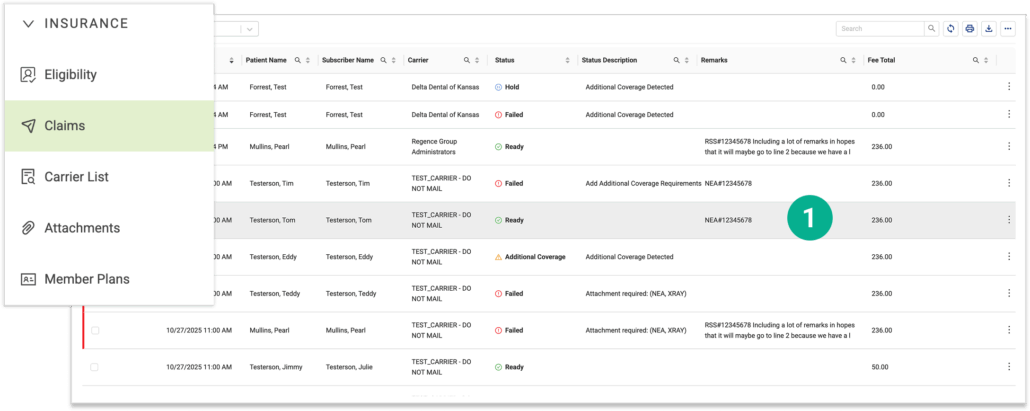
Open Vyne Trellis and click on Claims in the left sidebar
1. Select the claim you would like to attach a perio chart to
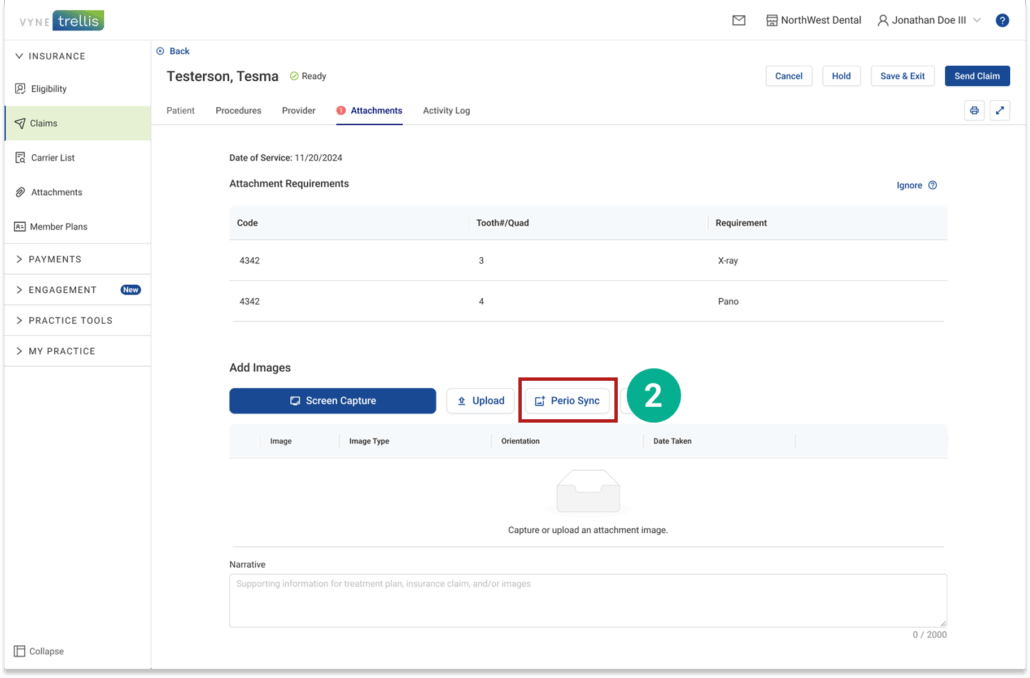
2. On the Attachments Tab, click the Perio Sync button.
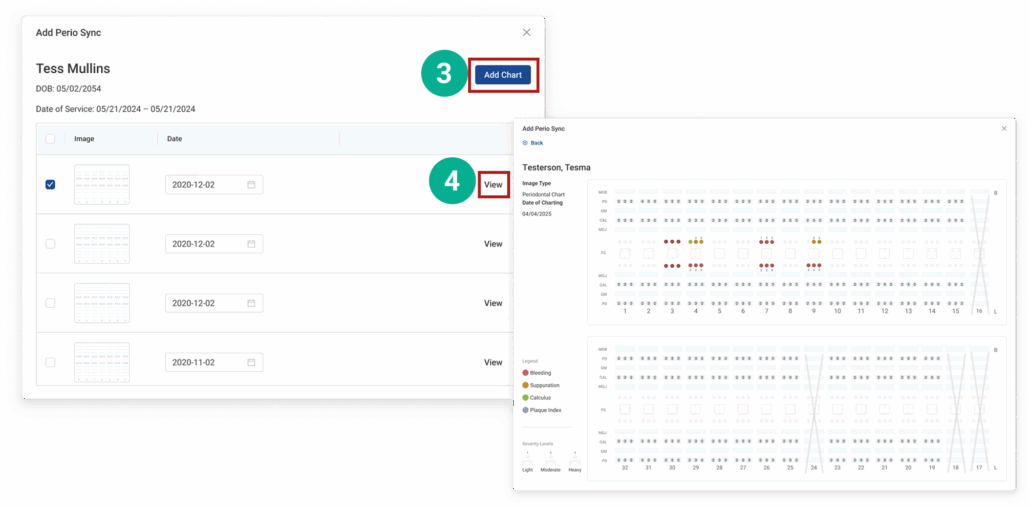
3. Select one or more Periodontal Charts and click Add Chart 4. Click View next to see chart details (tooth numbers, probing depths, bleeding points, etc.) before attaching.
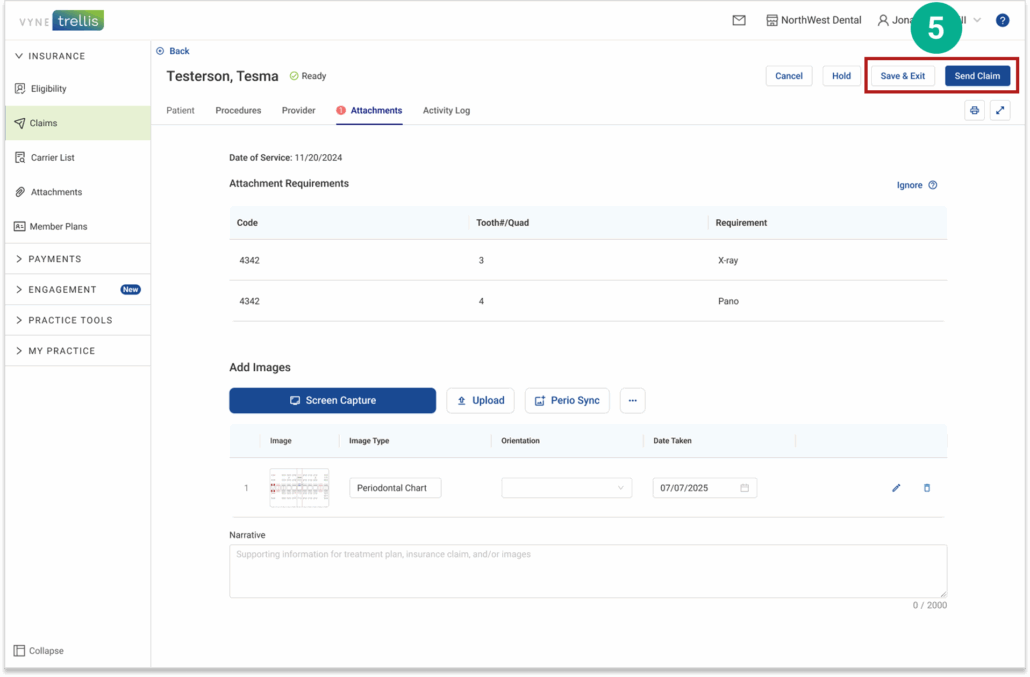
5. When you’ve completed your perio attachments. click Save or Send Claim
Tips for Perio Chart Attachments
Don’t see the Perio Sync button? Make sure you have Vyne Sync enabled and connected to your practice management system (PMS).
No charts displaying for a patient? The patient may not have a saved perio chart in the PMS. Confirm the charting is complete for the patient, then try again.
Charts look incomplete? Ensure the perio charting data in the PMS is finalized and saved before syncing.