Install Vyne Sync
Important: If you are using Open Dental CLINICS: Please contact our Support Team at (866) 712-9584 to install Vyne Sync.
Automations to save time and get paid faster.
Vyne Sync enables the flow of patient information between your Practice Management System and Vyne Trellis so you spend less time with manual data entry and processes that are prone to human error. Seamlessly automate your most important workflows for eligibility, payments, reminders, recall, forms, patient messaging, and more.
NOTE: Vyne Sync is required to be installed on your practice server
Vyne Sync Installation – 2 mins
STEP 1
Locate and access your Practice Management System Database Server Computer*
*Your server, or Database Server Computer, is usually found in a more secluded part of your dental office, often in a back room.
STEP 2
Login to Vyne Trellis in Your Web Browser
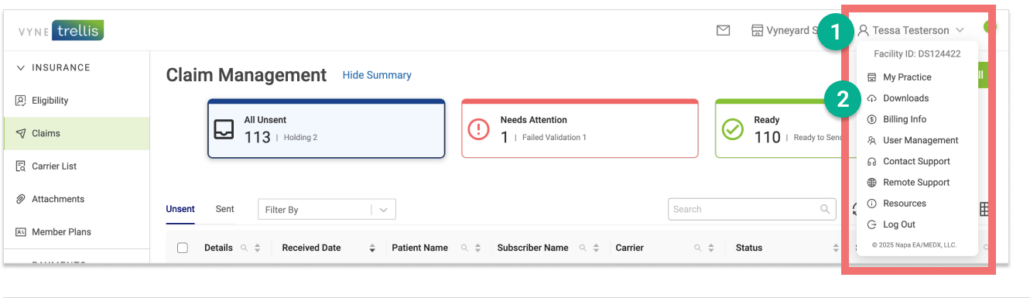
1. Login to Vyne Trellis by going to a web browser and typing in app.vynetrellis.com. Click your name in the upper right.
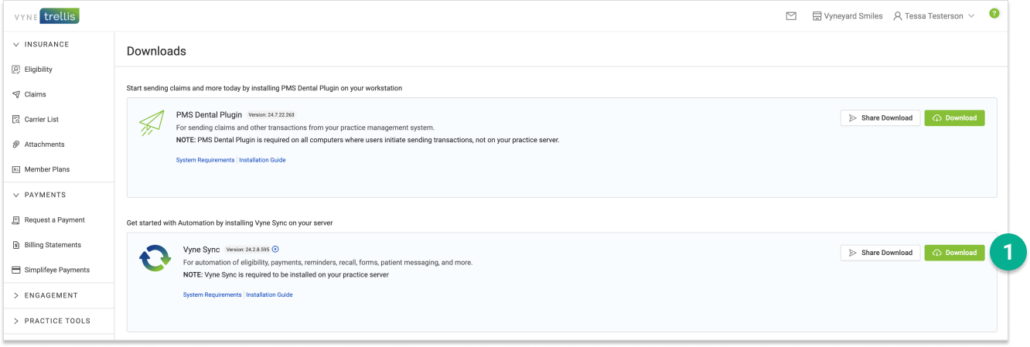
2. Select “Downloads”.
STEP 3
Download Vyne Sync
1. Select the “Download” button to save Vyne Sync.
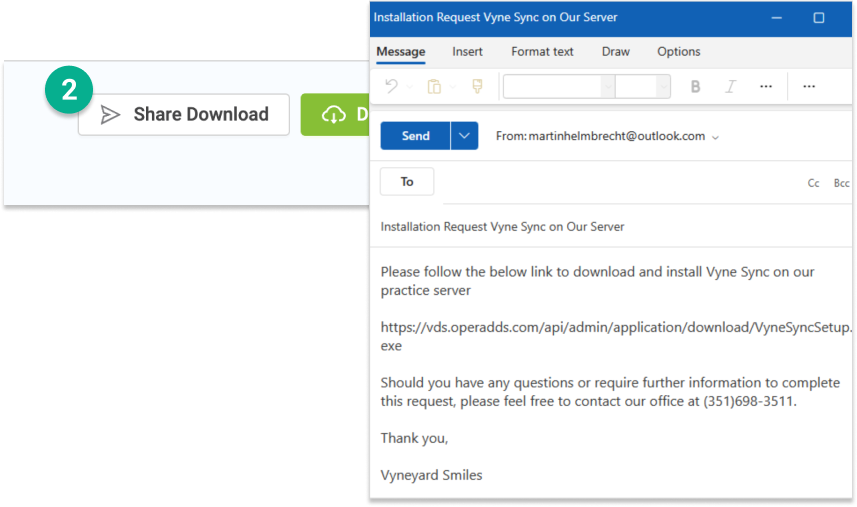
2. You can also share the Vyne Sync download with your IT team if needed by clicking the “Share Download” button.
STEP 4
Locate the downloaded Vyne Sync file
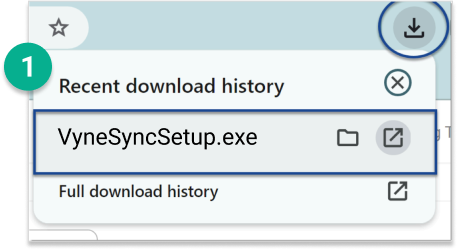
1. Locate the Vyne Sync file on your desktop. The executable file may be found within your browser or in your File Explorer on your computer. Double-click to open it.
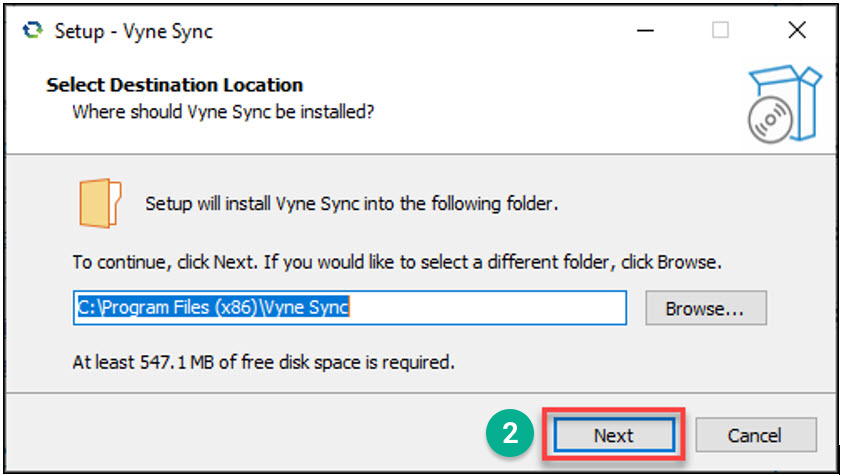
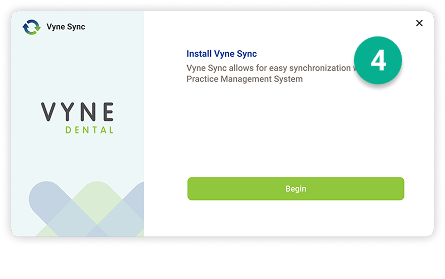
2. An installation guide will appear to begin the installation process
3. Vyne Sync will launch automatically after Install. If closed, select the Vyne Sync icon on the desktop.
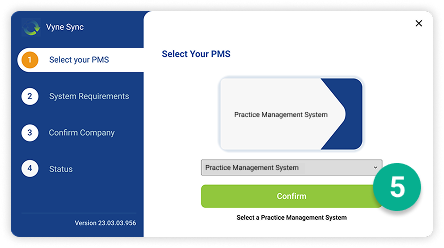
4. Select “Begin” to continue your installation. This process will guide you through a step-by-step process to confirm your PMS, system requirements and company info.
6. A system requiurements check will be completed. Select Continue.
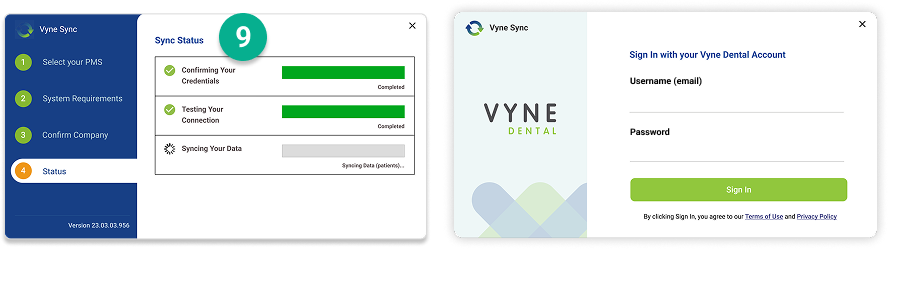
7. Enter Vyne Trellis Username and Password. Select Sign In.
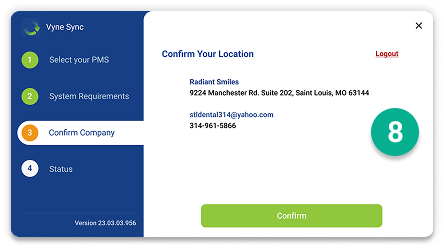
8. An account check will be completed after entering credentials. Confirm the Company Information matches. If it does, select Confirm.
9. Once your location is confirmed, the final installation will begin. You will see progress bars confirming your credentials, testing your connection, and syncing your data from your practice management system. Please note: you do not need to wait for this step to complete. Even if you close the screen, the sync will continue to pull in data from your practice management system.
It takes approximately 24-48 hours after installation for Vyne Trellis to display complete Eligibility results.
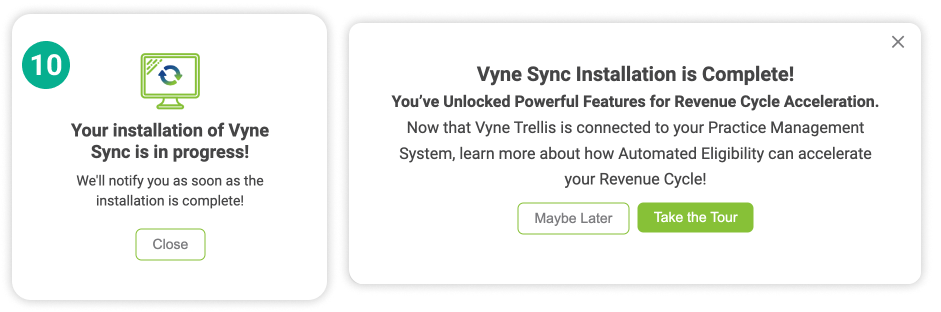
10. Once your installation is complete, a notification will appear in Vyne Trellis. From here, you can take a tour of our features – or start using them right away!