Get paid faster by processing virtual insurance credit cards directly through Vyne Trellis. Take payments from payers using card details provided on an EOB or virtual card email—eliminating the wait for paper checks.
Virtual Insurance Payment Processing – 2 mins
STEP 1
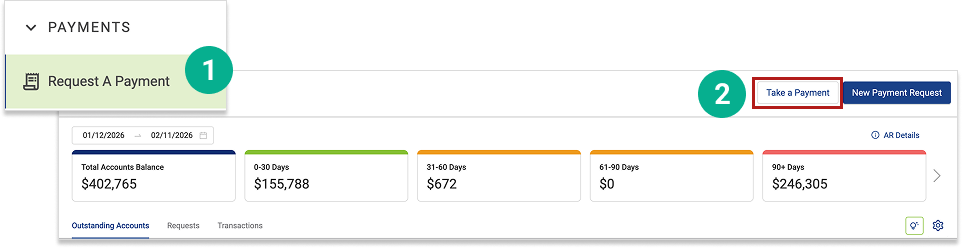
Open Vyne Trellis and click on Payments in the left sidebar
Click Request a Payment
Click Take a Payment
STEP 2
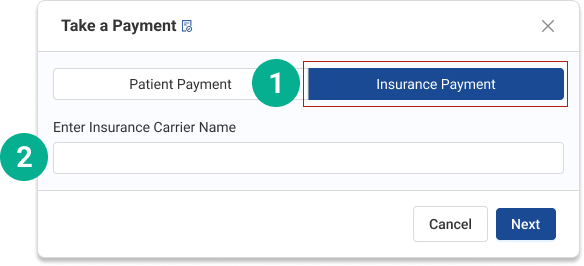
Select "Insurance Payment"
When the payment window appears: 1. Click the Insurance Payment tab 2. Enter the Insurance Carrier Name (e.g., Delta Dental, Aetna). 💡 This payer list will build over time and can be selected from a dropdown in the future.
STEP 3
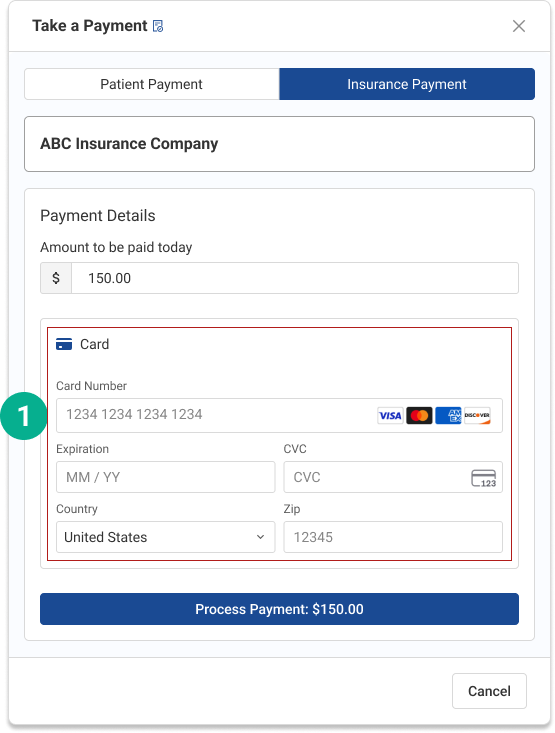
Enter Virtual Card Details
Input the credit card details from the Explanation of Benefits (EOB) or virtual card document
STEP 4
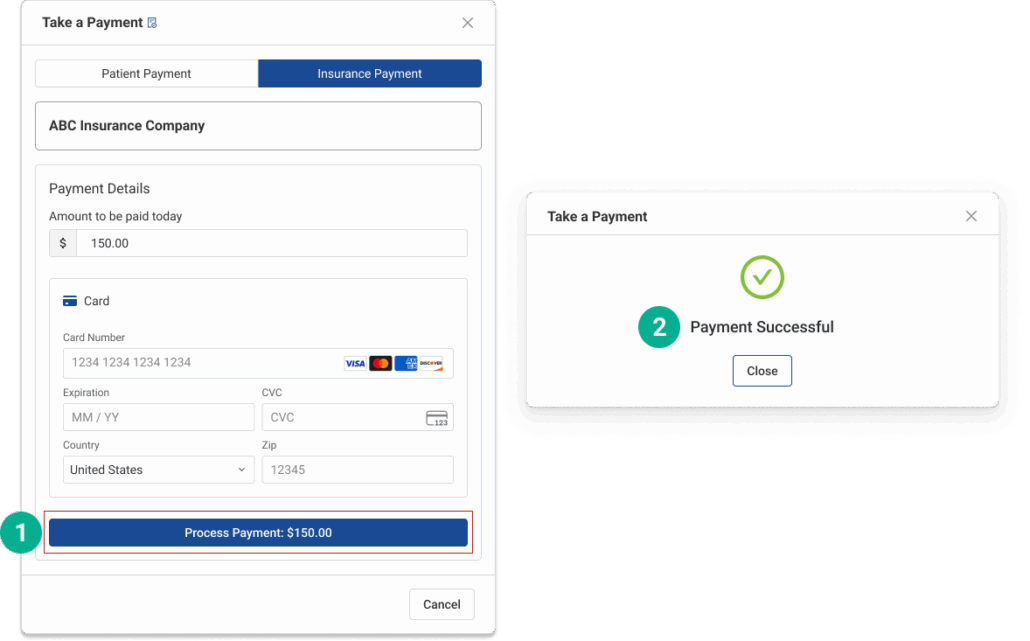
Process the Payment
Click Process Payment to submit the transaction
A confirmation screen will appear once the payment has successfully processed.
STEP 5
What to Expect After Submission
Payment is processed and funds will route to your connected merchant account.
Payment is not auto-posted to a patient ledger.
Payment is associated to the payer, not to a specific patient or claim.