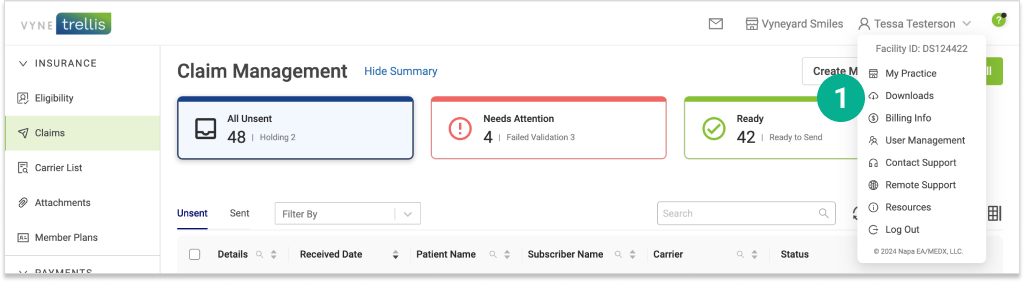
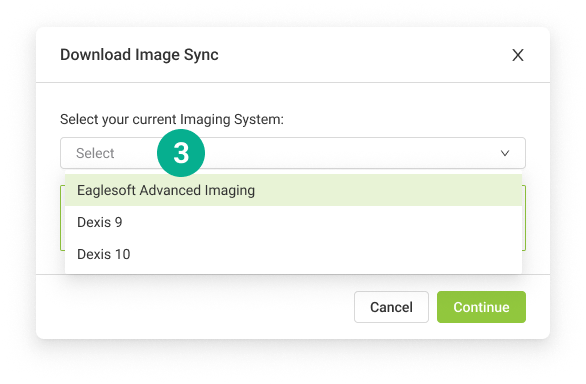
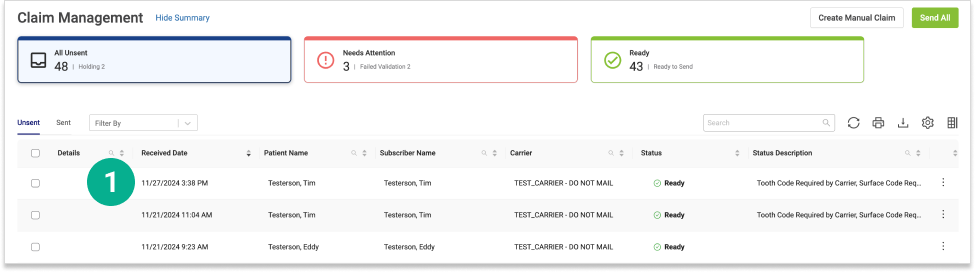
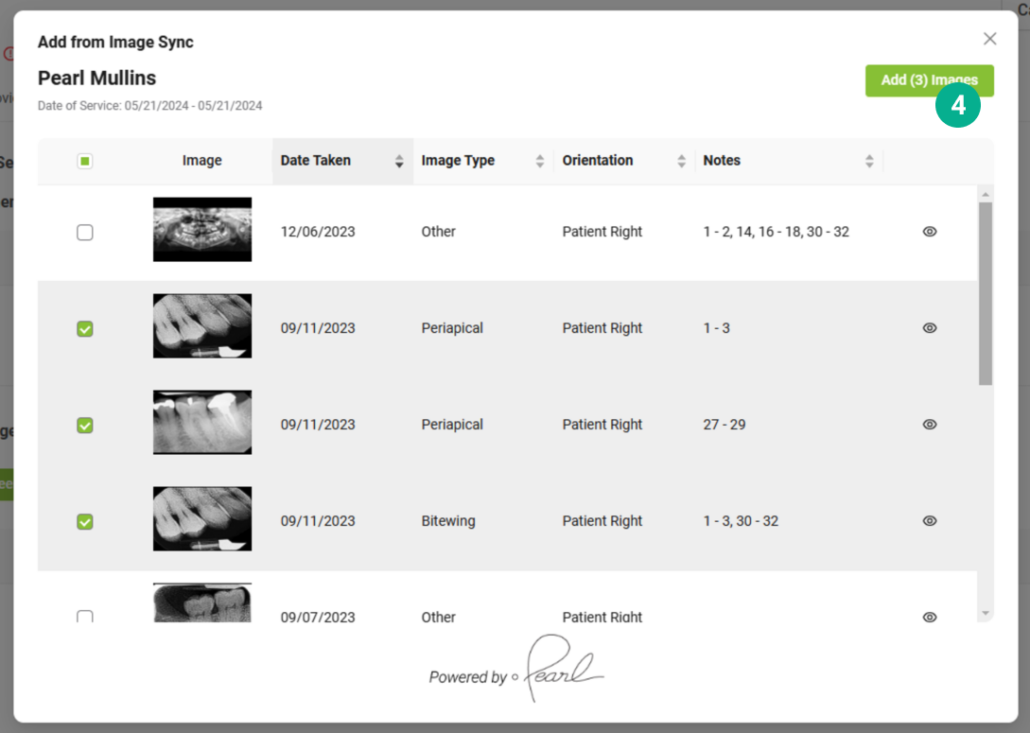
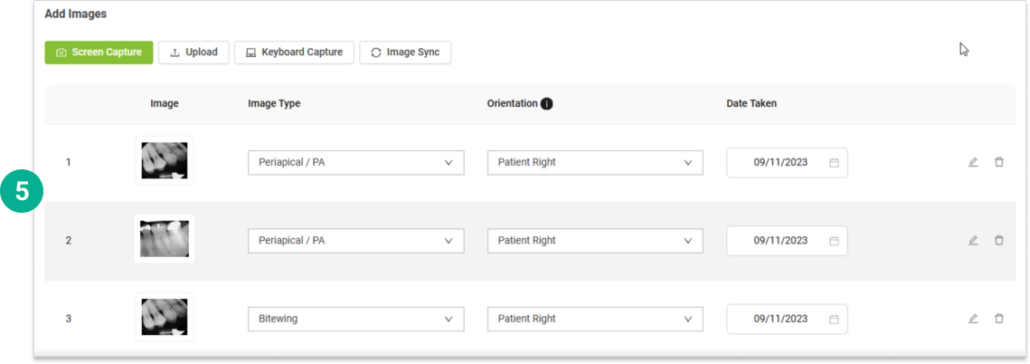
Vyne Trellis® Image Sync Self-Guided Install Install Image Sync Video – 2 mins STEP 1 Download Image Sync from the Downloads page within Vyne Trellis. 1. In the upper right corner, select your user name, then click on “Downloads”. 2. Under Additional Utilities, select Download for Image Sync. 3. Select your Imaging System and proceed with the download. NOTE: Image Sync is required to be installed on your imaging system server. STEP 2 Add an Attachment using Image Sync 1. Select the claim you would like to add an attachment to. 2. Click the Attachments tab.3. Underneath the “Add Images” section, click the “Image Sync” button. 4. Select any images you would like to attach and click “Add Images”. 5. Your selected images will now be attached to the claim. Need help with your installation? Contact our Image Sync Support Team at (888) 320-7023 Return to "Get Started"