Billing Statements works best with Vyne Trellis Payments. Integrate Payments and Statements to get paid faster by including a payment QR code and Pay-by-Link URL to give customers the flexible payment options they expect.
STEP 1
Connect Vyne Sync to your Practice Management System*
By connecting Vyne Sync, patient data will automatically flow into Vyne Trellis, eliminating manual entry.
Note: Note: Vyne Sync is required to be installed on your practice server.
*If you have not already connected Vyne Sync to your Practice Management System.
Vyne Sync Installation – 2 mins
1. Login to Vyne Trellis and click your name in the upper right 2. Select “Downloads”
3. Go to the “Vyne Sync” section and click the Download button.
4. If you are working with an IT contact, you can easily share a pre-filled instructional email directly from Vyne Trellis by clicking the “Share Download” button.
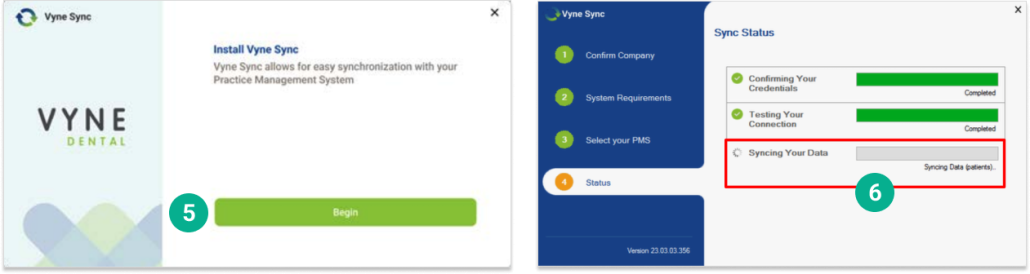
5. Open the downloaded file on your practice server and follow the simple installation instructons. 6. You can move on as soon as Vyne Sync reaches the “Syncing Your Data” status.
After Vyne Sync is connected to your Practice Management System, complete Payments Enrollment to unlock the ability for patients to pay online from their Billing Statement.
STEP 2
Complete Payments Enrollment
Enroll in Stripe – 4 mins
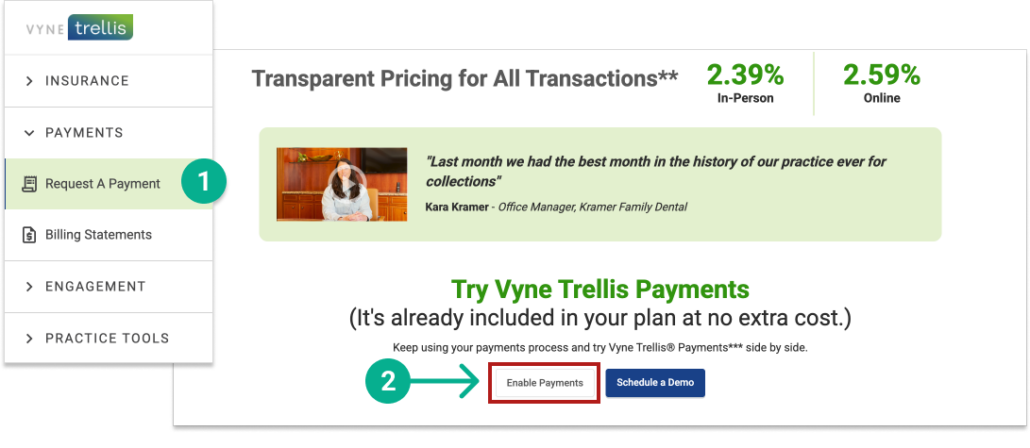
1. Open Vyne Trellis and click on Payments, then Request a Payment in the left sidebar 2. Click on the “Enable Payments” button.
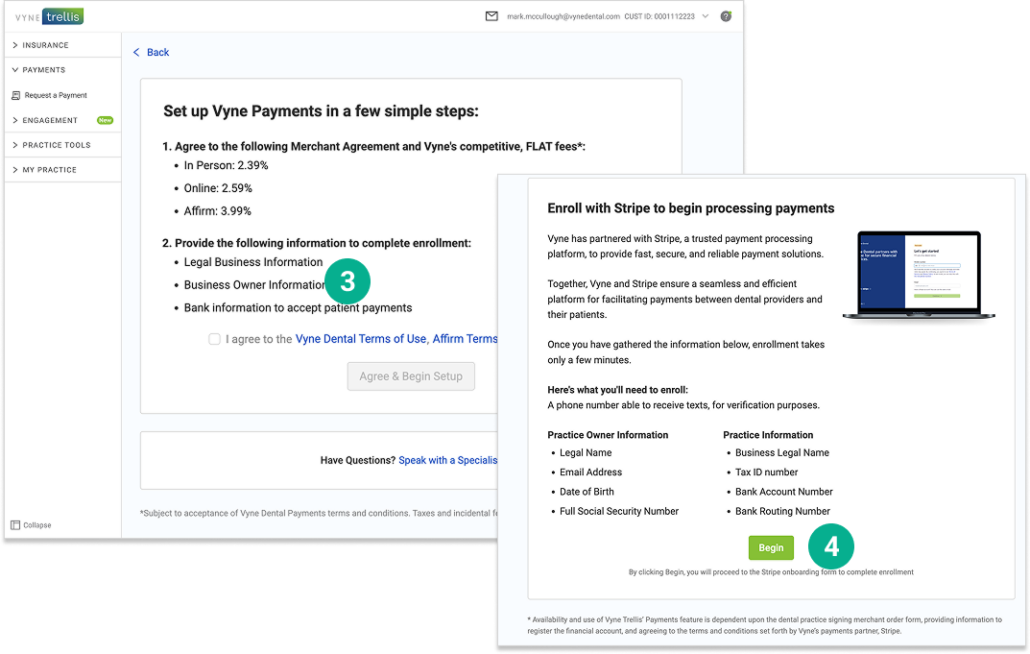
3. Agree to the Rates, Terms of Use, and Privacy Policy 4. Complete the enrollment with Stripe. Pro Tip: Gather the information you need ahead of time to ensure an easy, expedited enrollment.
Legal Name
Email Address
Date of Birth
Full Social Security Number
Practice Legal Name
Practice Tax ID
Practice Bank account and Routing numbers
STEP 3
Enable QR Codes
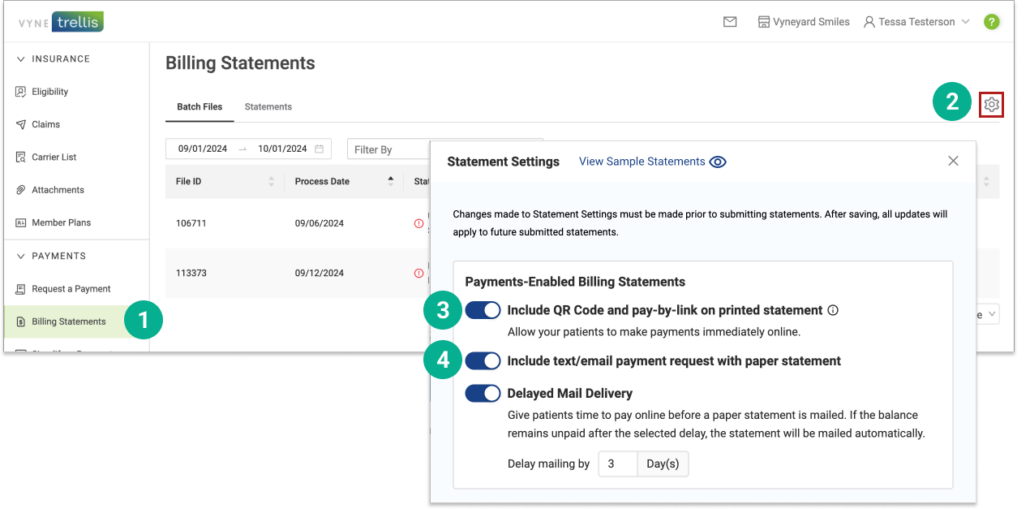
1. Login to Vyne Trellis and click ‘Billing Statements’ 2. Click Settings Gear Icon 3. Toggle ON the “Include QR Code and pay-by-link on printed statement” setting 4. Toggle ON the “Include text/email payment request with printed statement” setting
Once the above steps are complete, any future statements your practice sends will now include a convenient QR code as well as a Pay-by-Link url – both printed directly on your patient statements. Patients will also receive text or email payment requests when paper statements are sent, providing even more ways for your patients to pay you directly!