Before sending a transaction to be processed to your terminal first ensure the terminal is powered on and connected to wifi.
To send a payment request to an existing patient:
STEP 1
Open Vyne Trellis and click on Payments in the left sidebar
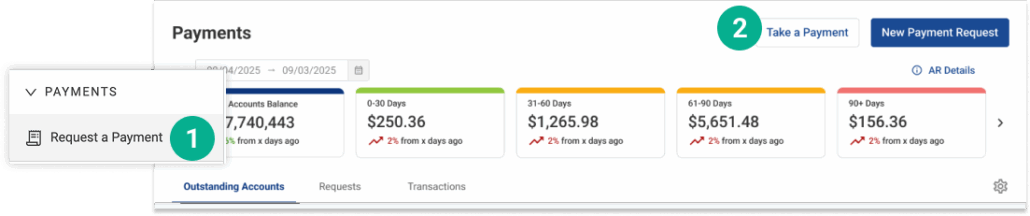
1. Open Vyne Trellis and click on Payments in the left sidebar 2. Click the “Take a Payment” button in the top right corner of the screen
STEP 2
Select patient and enter transaction details
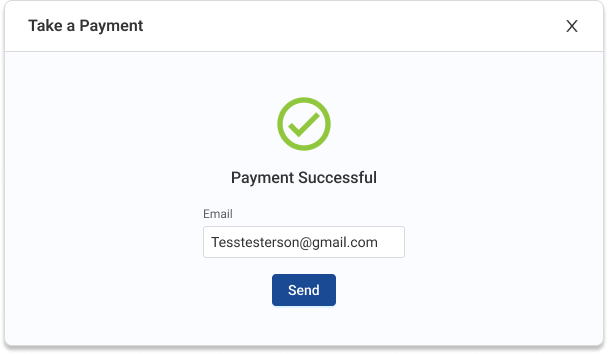
Use terminal to complete payment using tap, swipe, or the chip reader. After the payment processes, enter patient email and send electronic receipt.
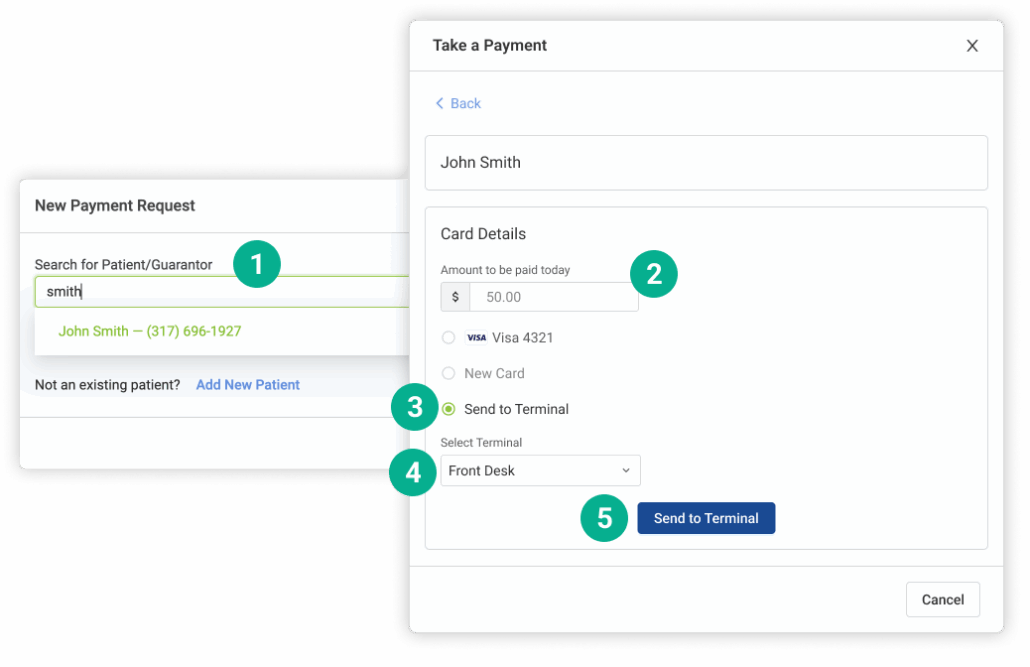
1. Search and select the patient you would like to message 2. Under “Card Details, enter the amount you would like to request from the patient 3. Select the “Send to Terminal” radio button 4. Choose the terminal from the list you would like to process the payment on 5. Click “Send to Terminal” in the bottom right of the screen
STEP 3
Select a terminal and process payment
Use terminal to complete payment using tap, swipe, or the chip reader. After the payment processes, enter patient email and send electronic receipt
To send a payment request to a new patient:
STEP 1
Open Vyne Trellis and click on Payments in the left sidebar
1. Open Vyne Trellis and click on Payments in the left sidebar 2. Click the “Take a Payment” button in the top right corner of the screen
STEP 2
Enter patient and transaction details
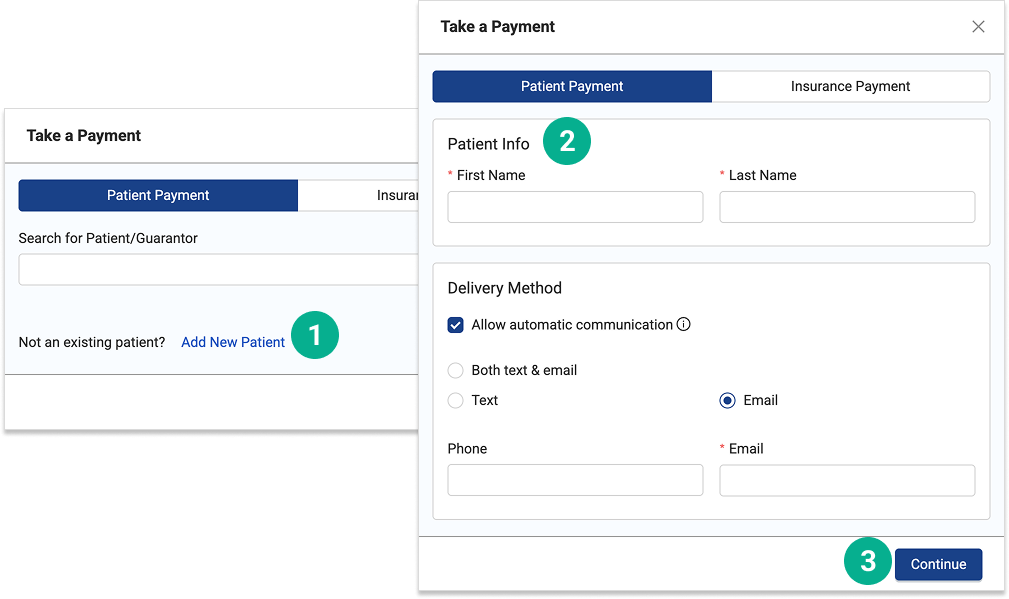
1. Click the “Add New Patient” link. 2. Enter the patient’s name and contact information. 3. Click Continue.
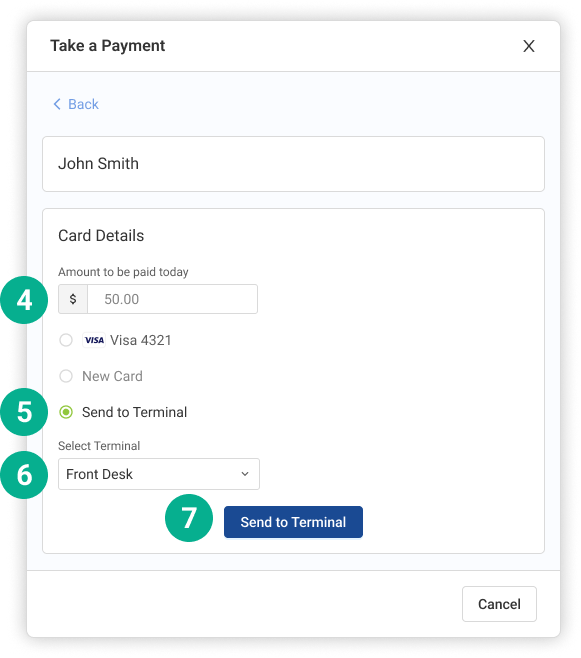
4. Under “Card Details, enter the amount to be paid today 5. Select the “Send to Terminal” radio button 6. Choose the terminal from the list you would like to process the payment on 7. Click “Send to Terminal” in the bottom right of the screen
STEP 3
Use terminal to process payment
Use terminal to complete payment using tap, swipe, or the chip reader. After the payment processes, enter patient email and send electronic receipt.